In this article, we demonstrate step by step how to use Qlik Talend Data Integration to create a replication task that moves data from YouTube Analytics into your analytics data store. Although Qlik is typically associated with the analytics layer, this example focuses on the data integration side of the platform. In this demonstration, we will create a pipeline project and configure a replication task that retrieves data from YouTube Analytics and loads it into a target database.
Creating a Pipeline Project
Qlik has been developing initiatives to generate analytics across its entire platform of video assets. This example illustrates how to set up a data integration pipeline for YouTube Analytics, which can later be extended to include additional data sources.
To begin:
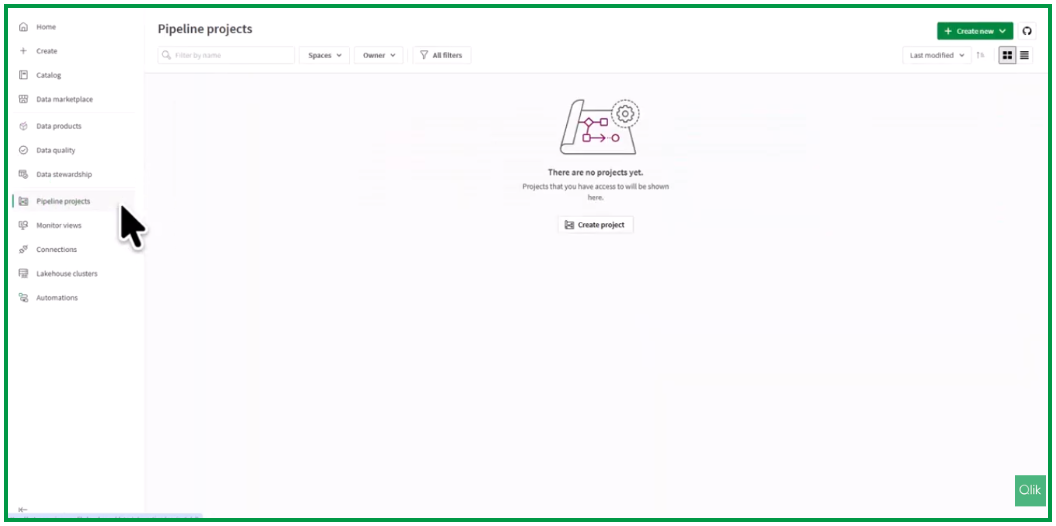
Navigate to Pipeline Projects.
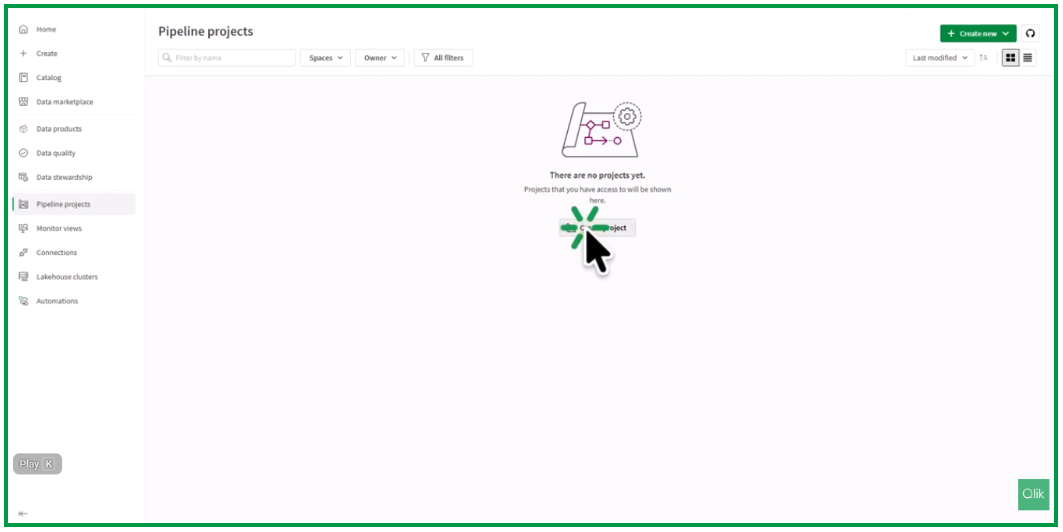
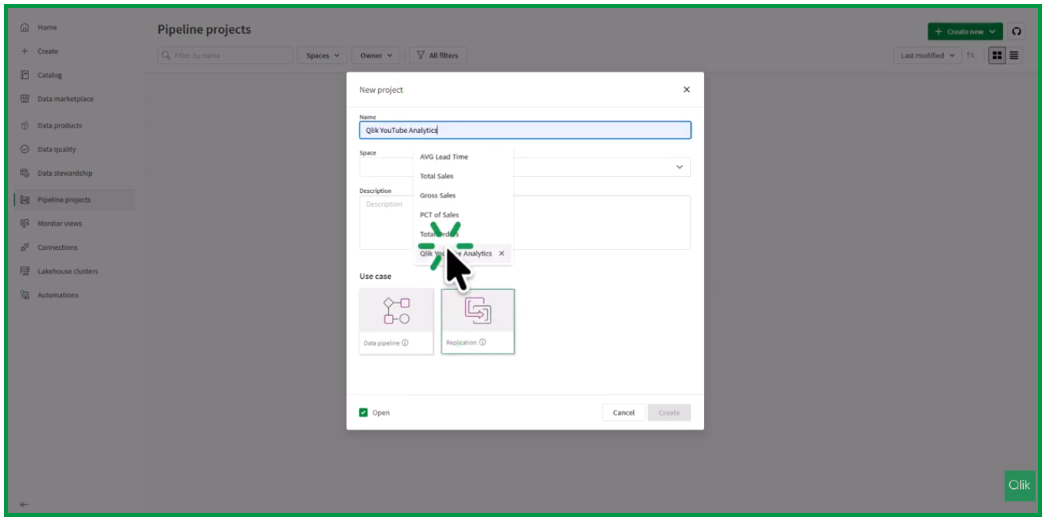
Click Create a project.
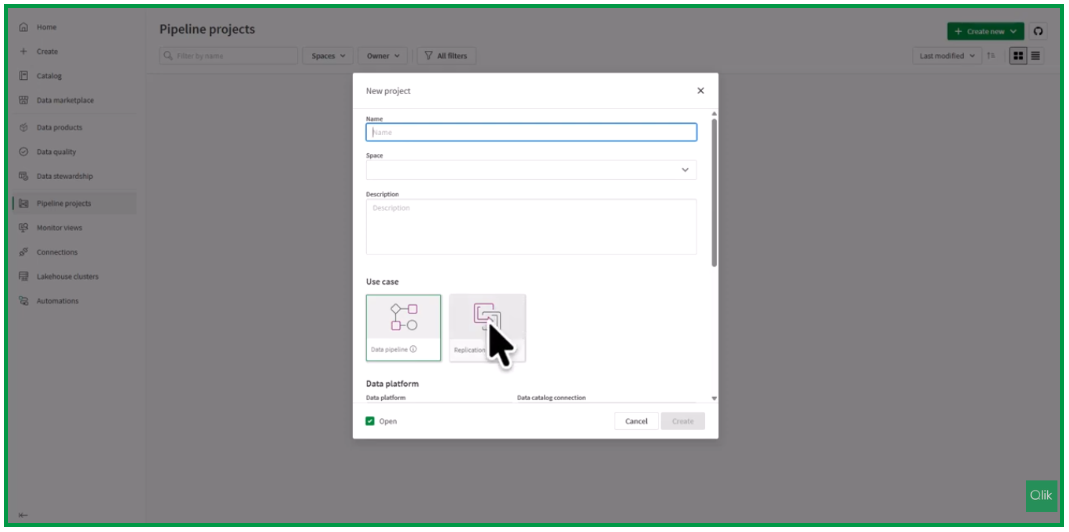
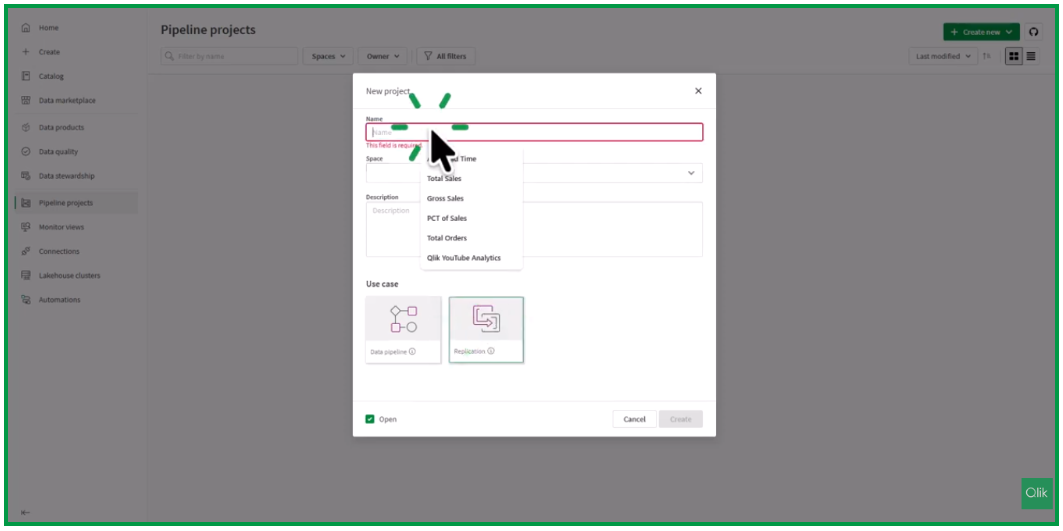
Create a Replication Project and assign it a name, for example Qlik YouTube Analytics. Next, select the data project space called YouTube Analytics, then click Create.
Creating the Replication Task
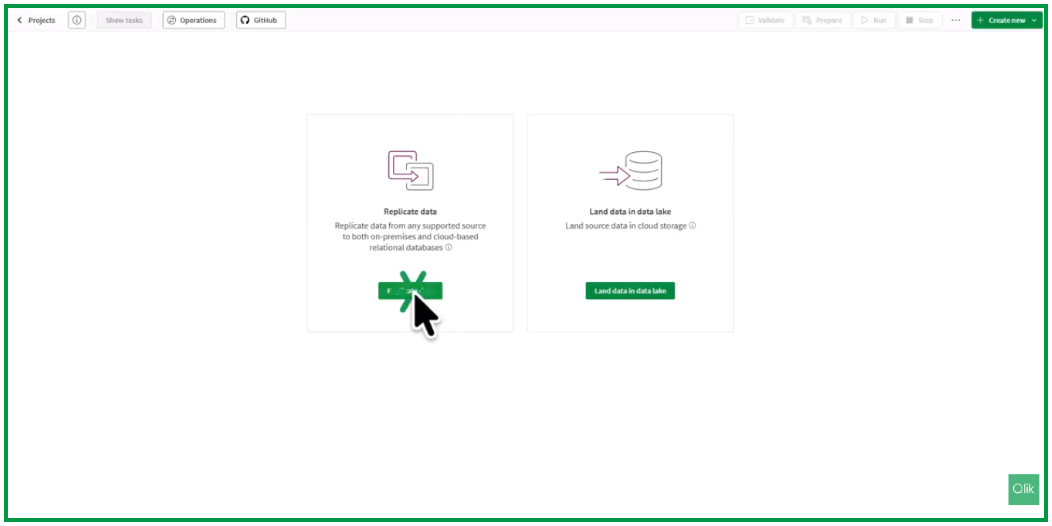
After the project is created:
Click Replicate Data.
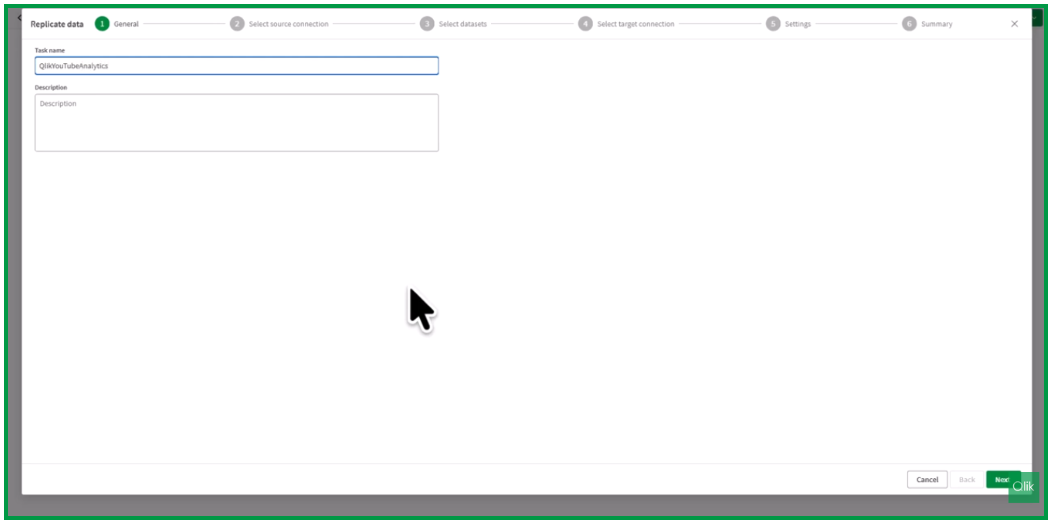
Provide a name for the task, for example Qlik YouTube Analytics.
By default, the name entered here will also be used as the schema name for the target database.
Creating the YouTube Analytics Connection
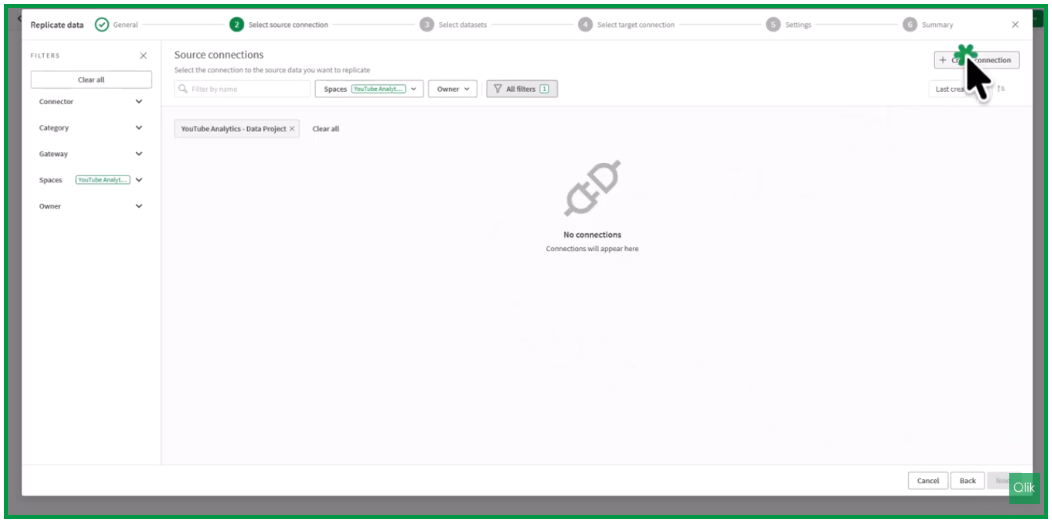
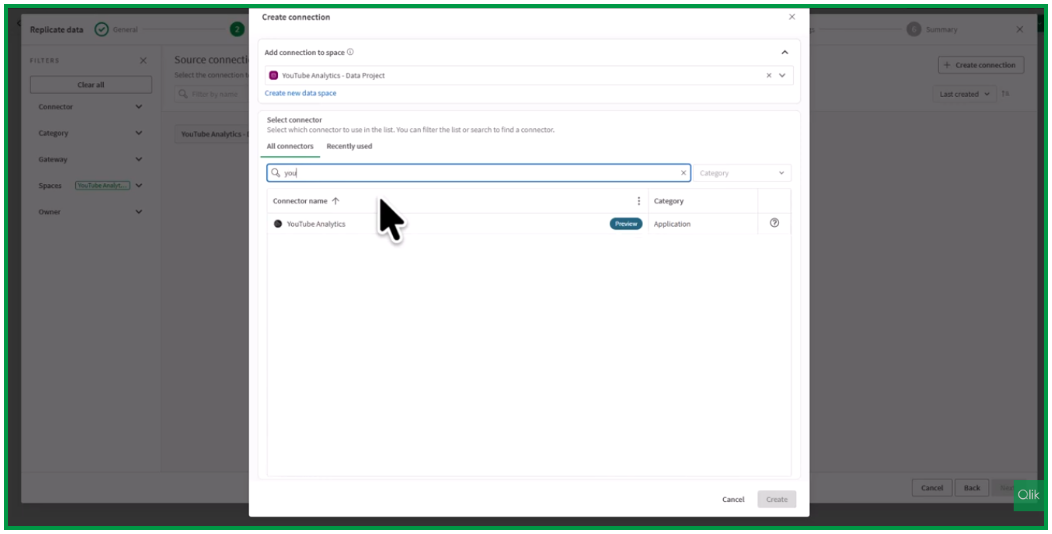
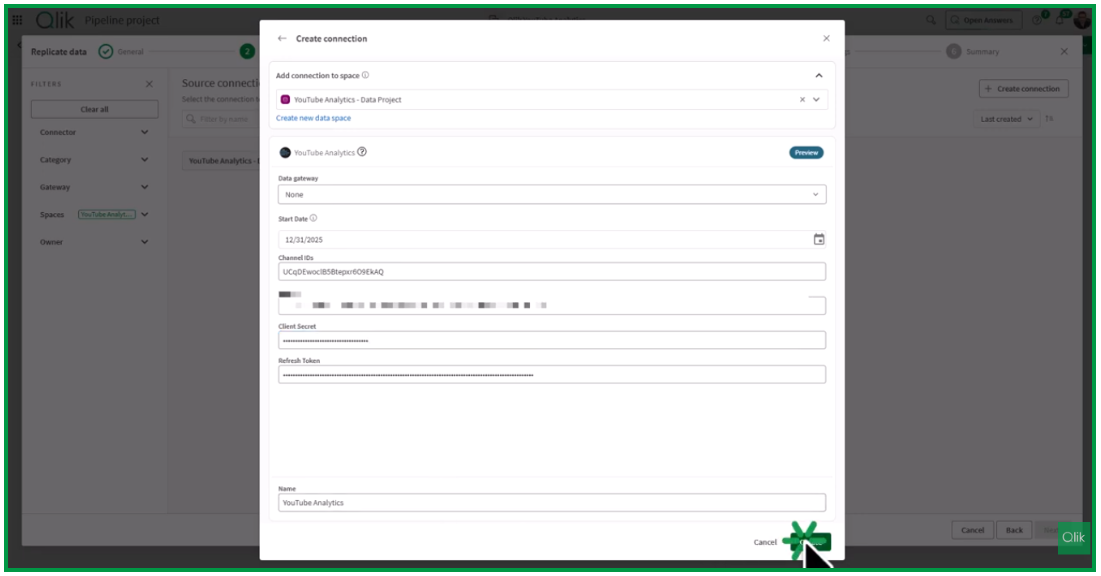
Since no connections have been configured yet, click Create connection, search for YouTube, and select YouTube Analytics.
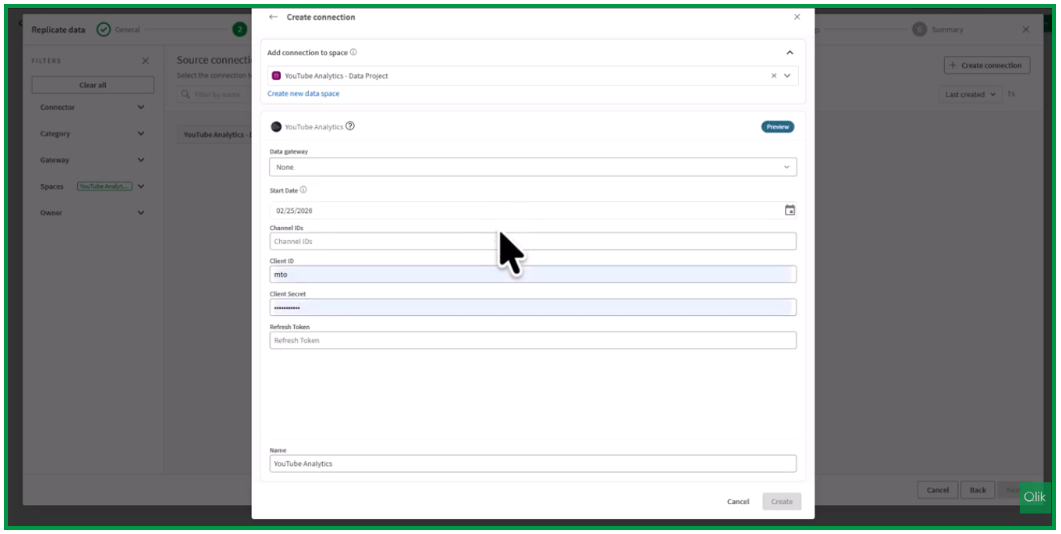
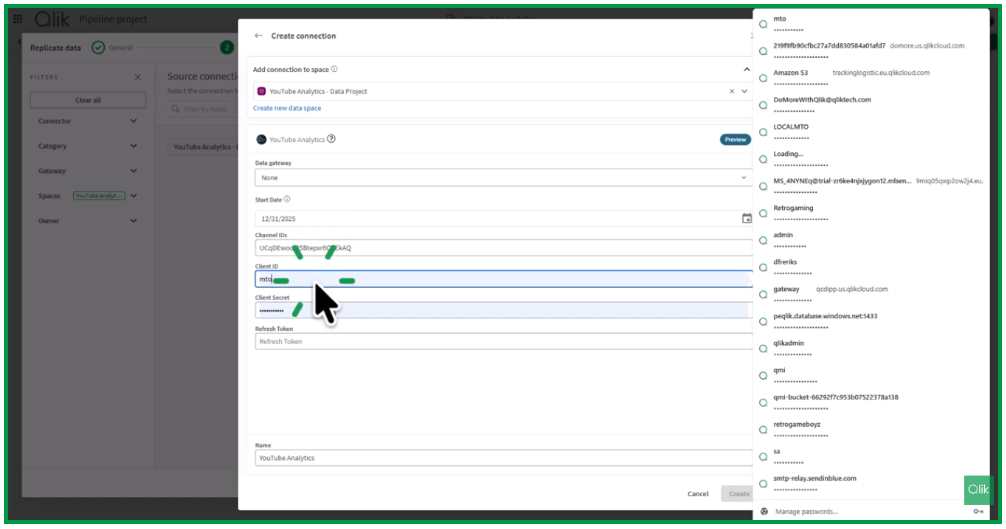
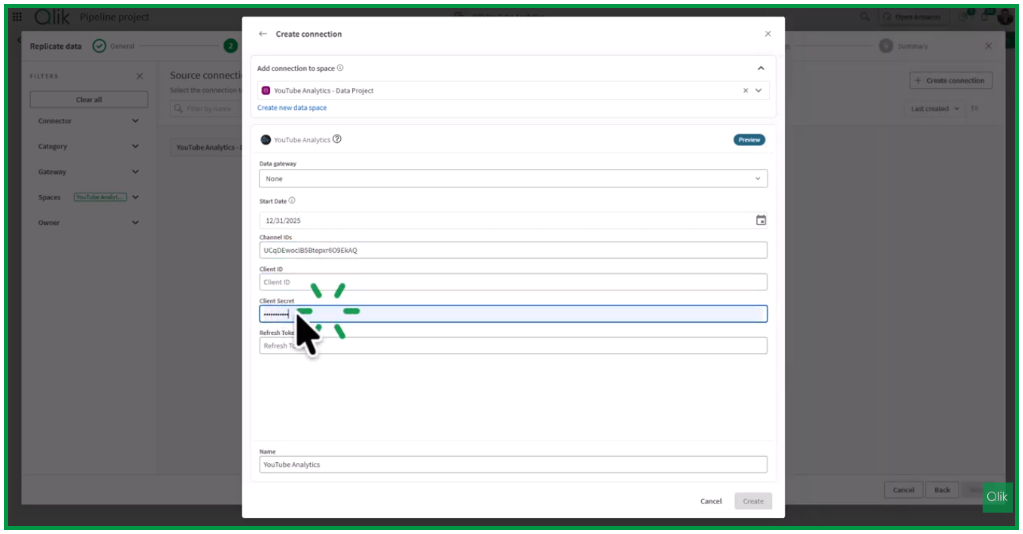
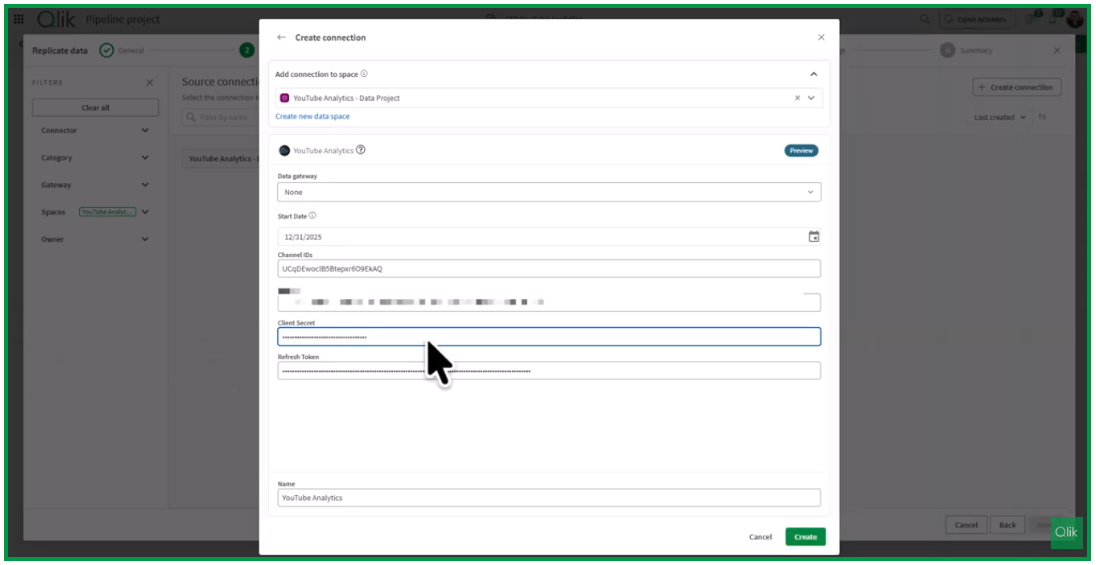
You will then see several required input fields. Gateway configuration is not required in this case, but you must specify:
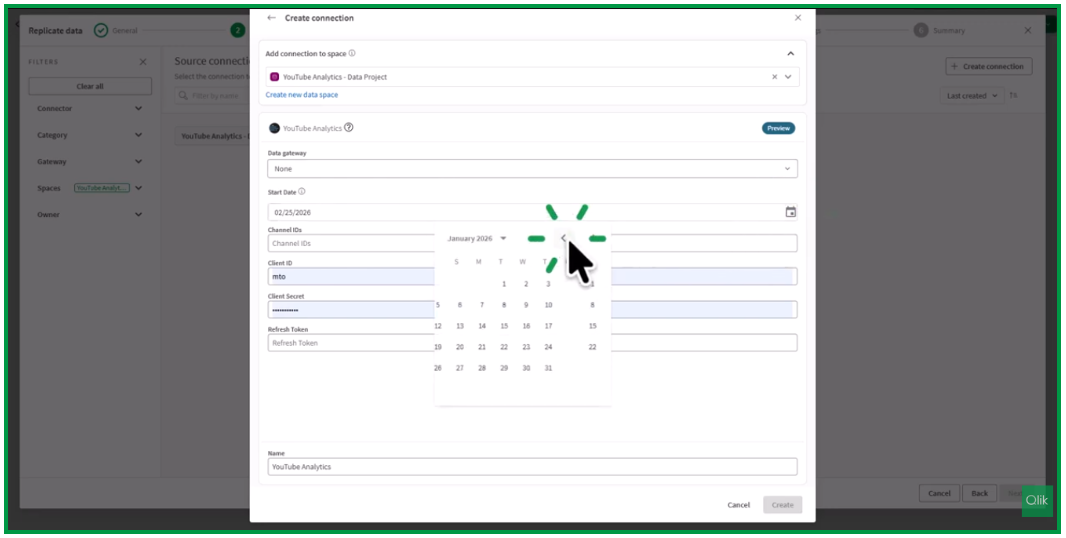
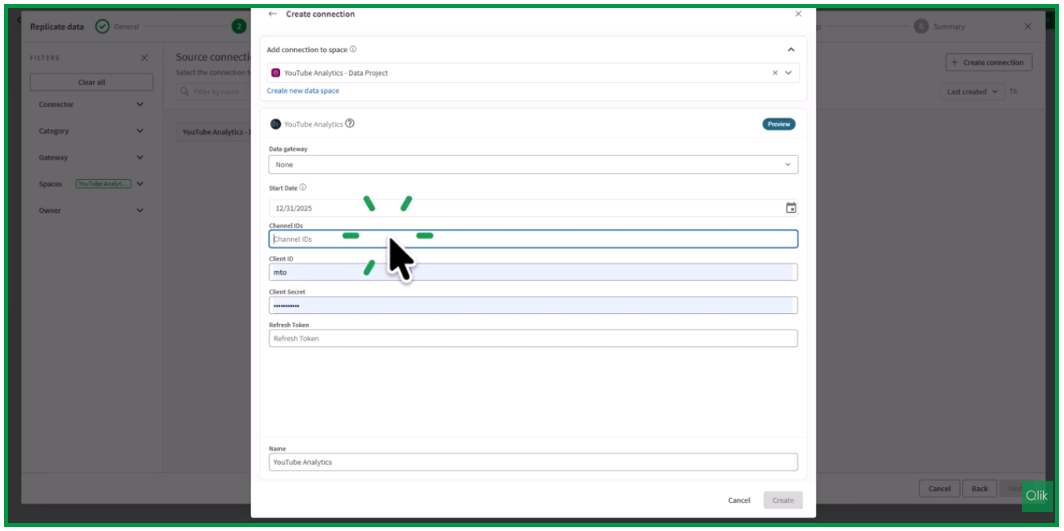
Start Date – for example, the beginning of the year. The system automatically defaults to the previous day (for example, December 31).
Channel ID
Client ID
Client Secret
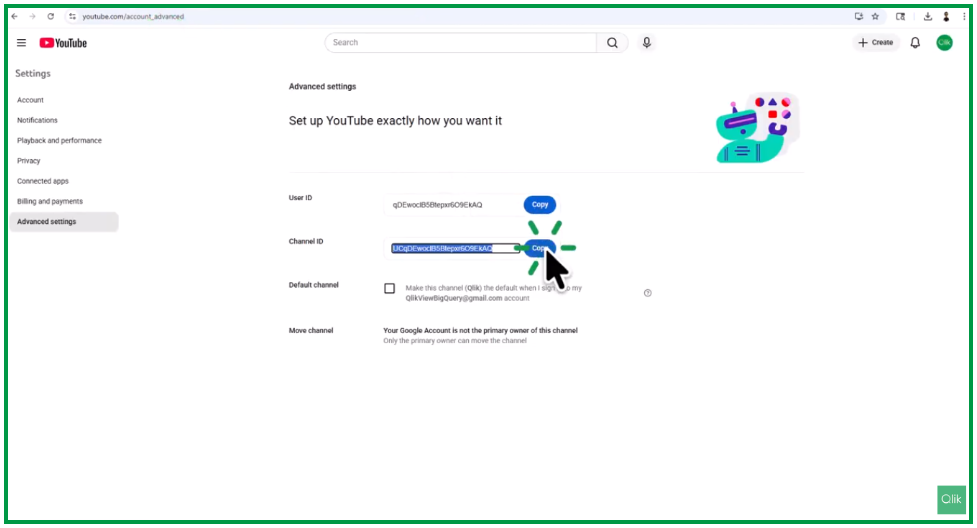
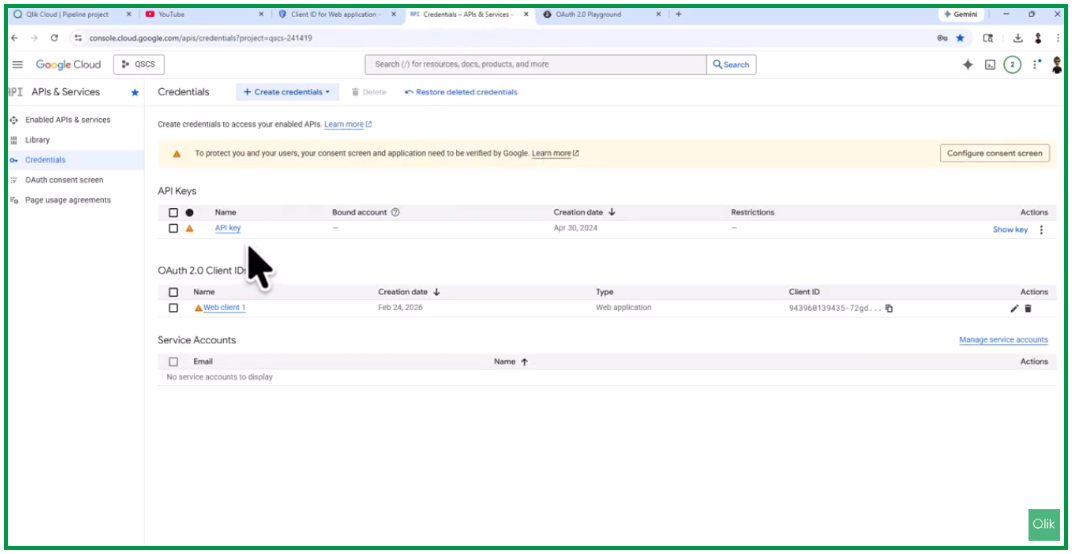
The Channel ID corresponds to the identifier of your YouTube channel. The Client ID and Client Secret must be generated by your team through the Google Cloud API environment.
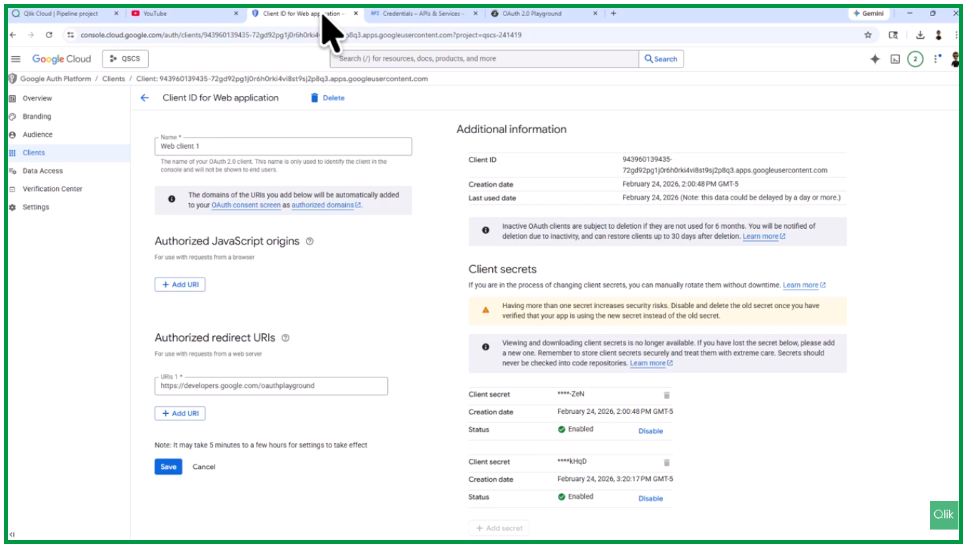
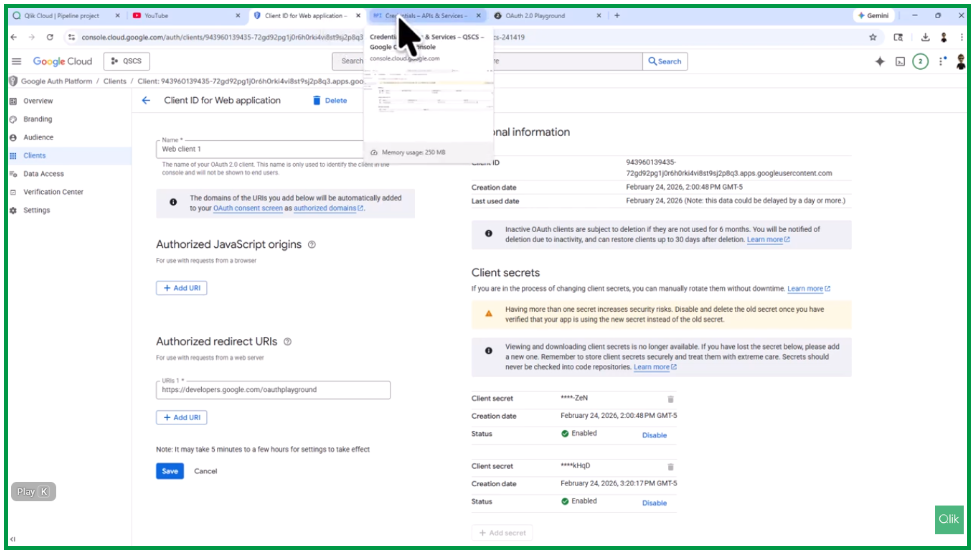
If you have access to the Google Cloud APIs console, you can create a web client using OAuth authentication and obtain these credentials. Below is an example of a configured Client ID for a web application.
This configuration has been created under an account that has access to the Qlik YouTube channel.
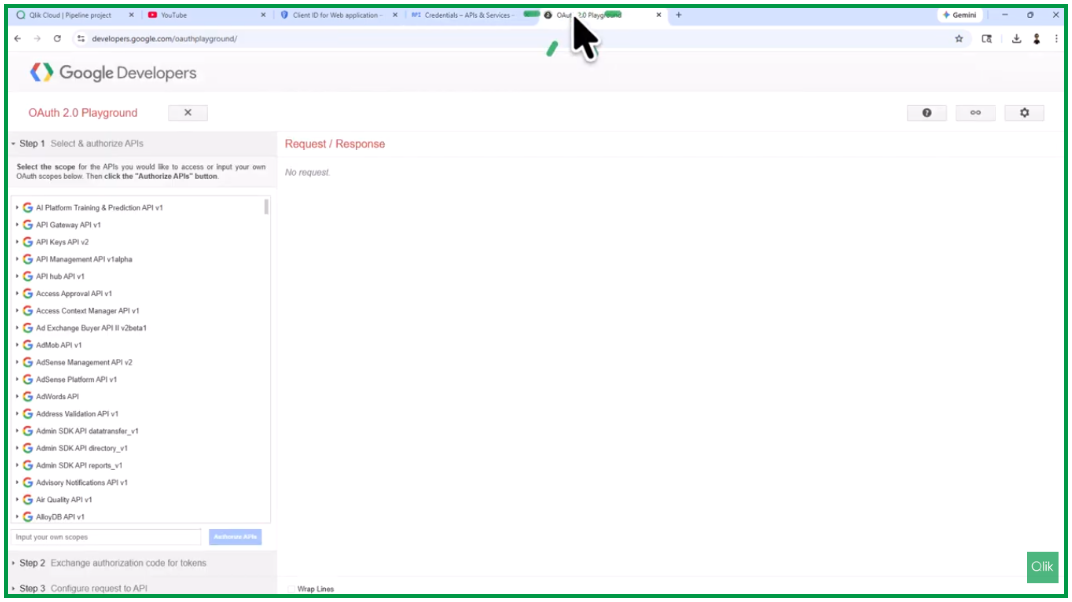
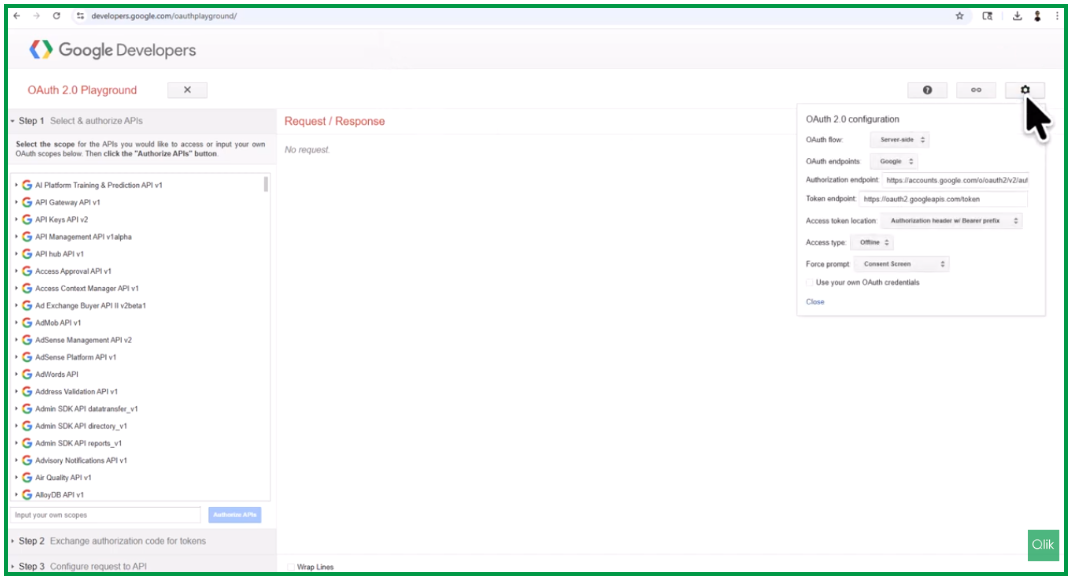
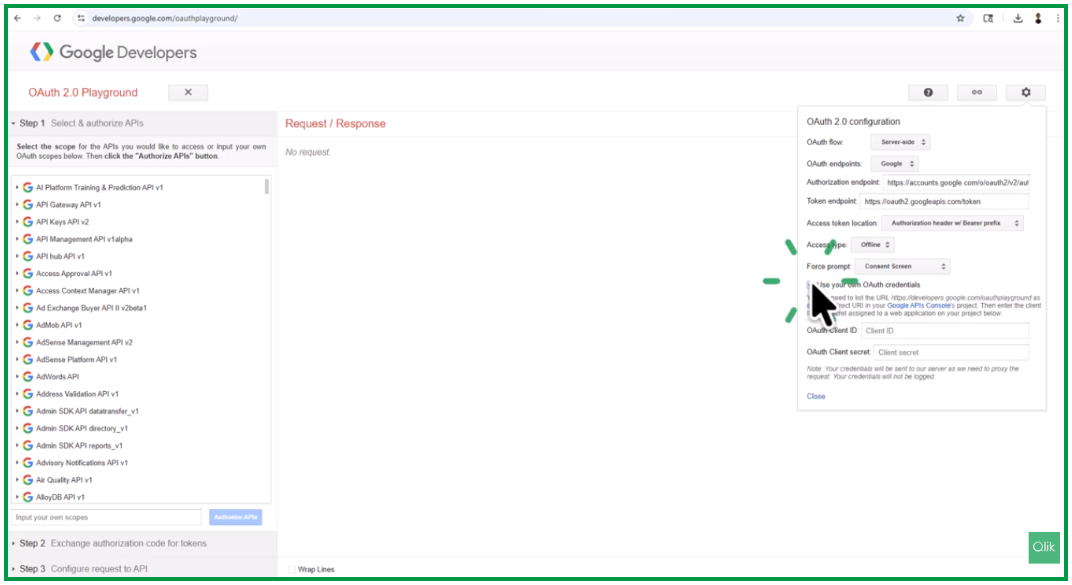
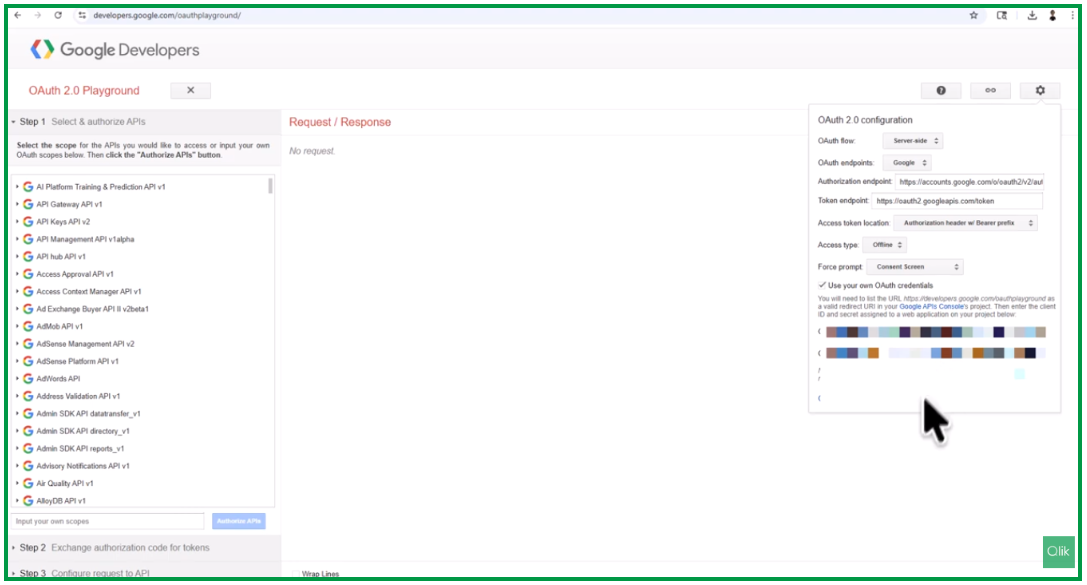
You will also use the OAuth 2.0 Playground in Google Developers to generate the refresh token required for authentication.
Within the OAuth configuration, leave the default settings unchanged. Make sure that the Redirect URI has already been configured.
Select Use your own credentials, then enter the Client ID and Client Secret.
Authorizing the API
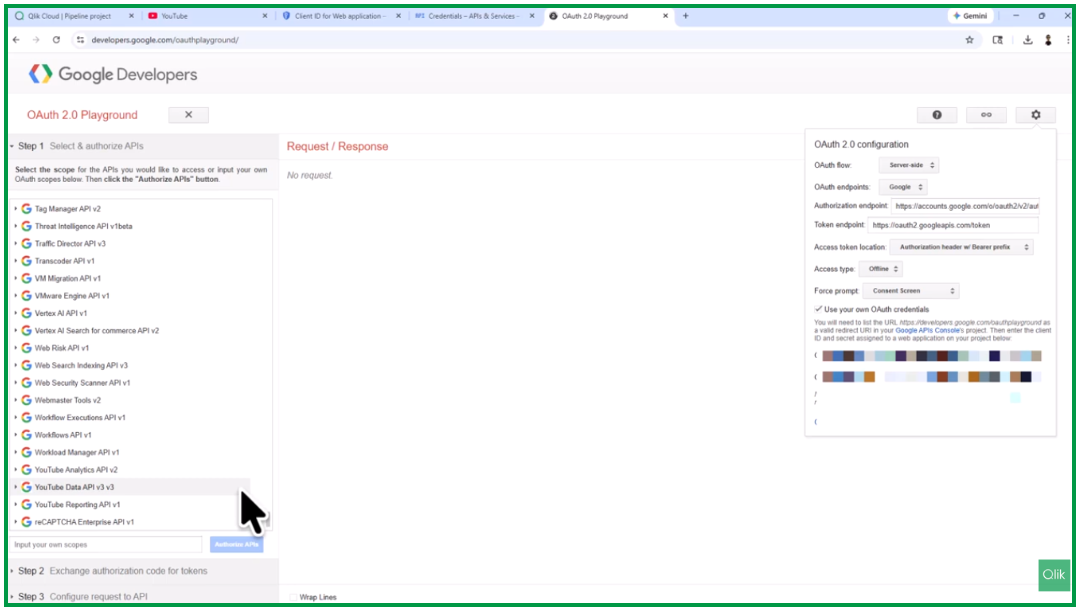
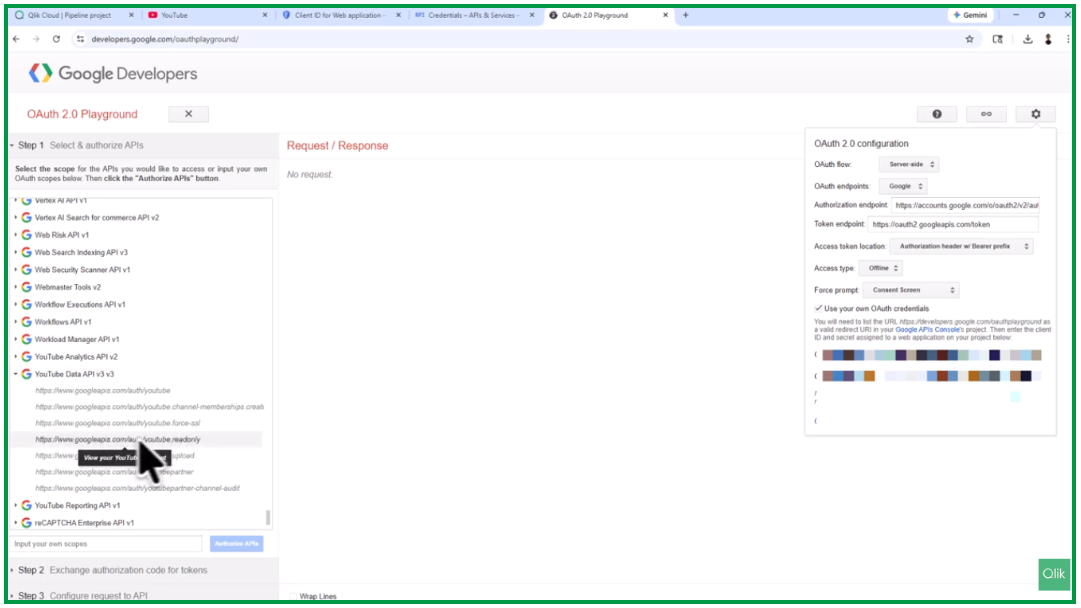
Next, locate the APIs required for the connector. The YouTube Analytics connector in Qlik Talend Data Integration actually uses the YouTube Data API, even though the name suggests it might use the Analytics API.
To proceed, authorize the YouTube Read-Only scope from the Google APIs list and click Authorize APIs.
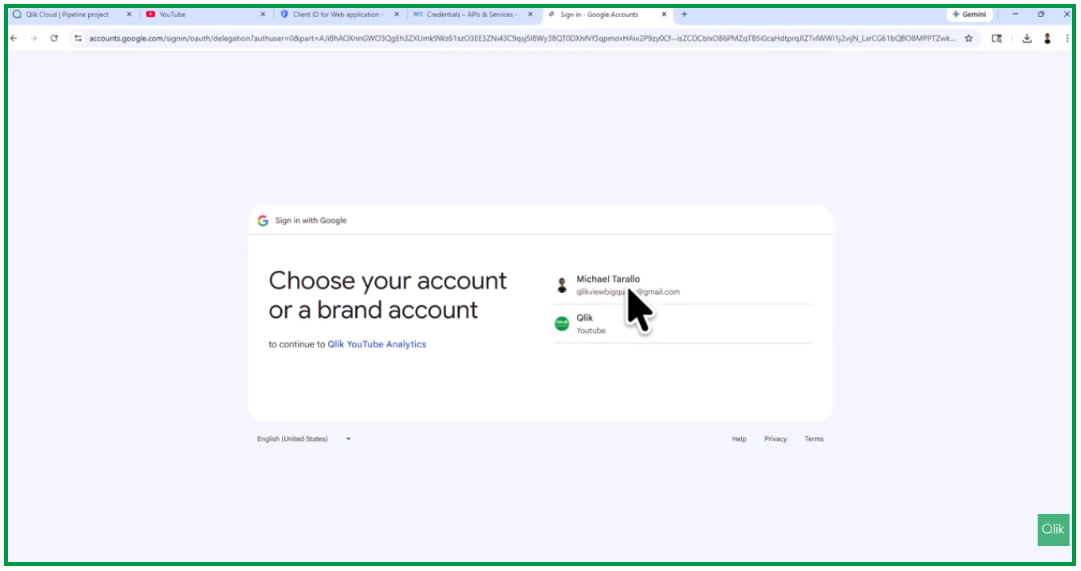
Select the Google account that has access to the relevant YouTube channel.
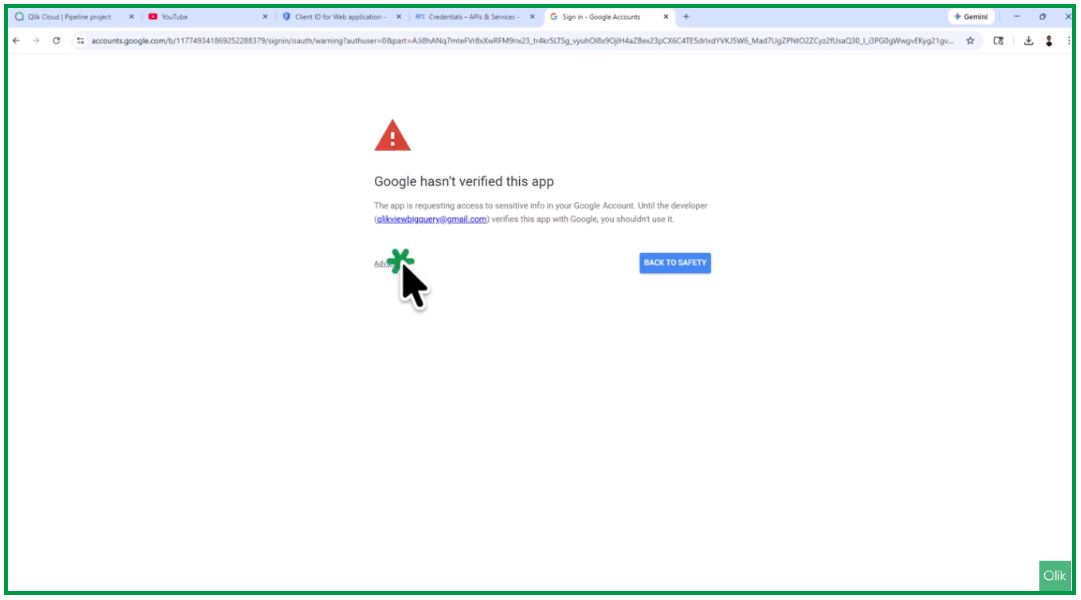
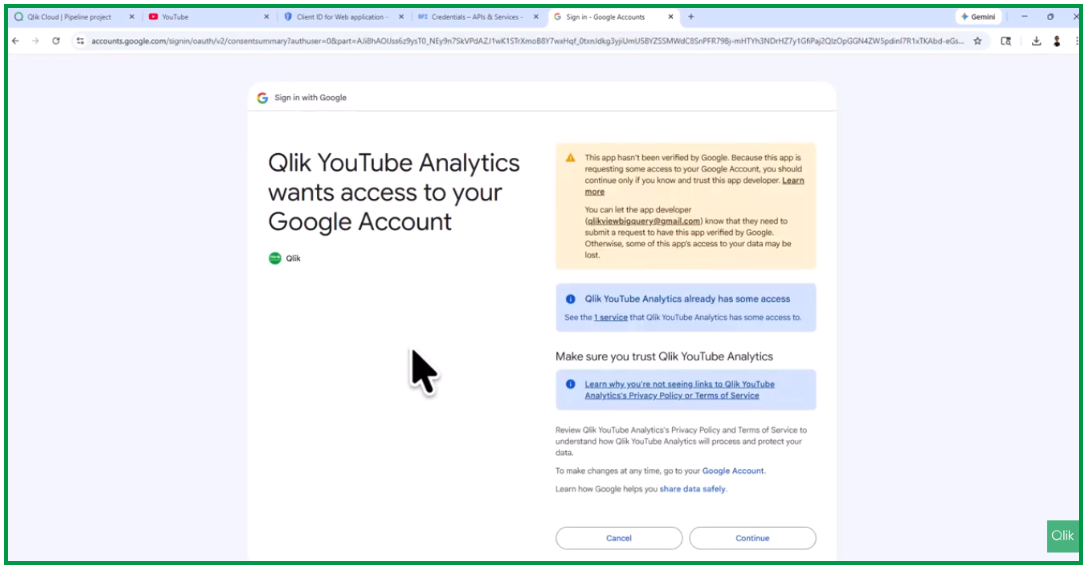
Because this is typically a test application that has not yet been verified by Google, you may see a warning message. Continue to access the YouTube Analytics data and generate the refresh token.
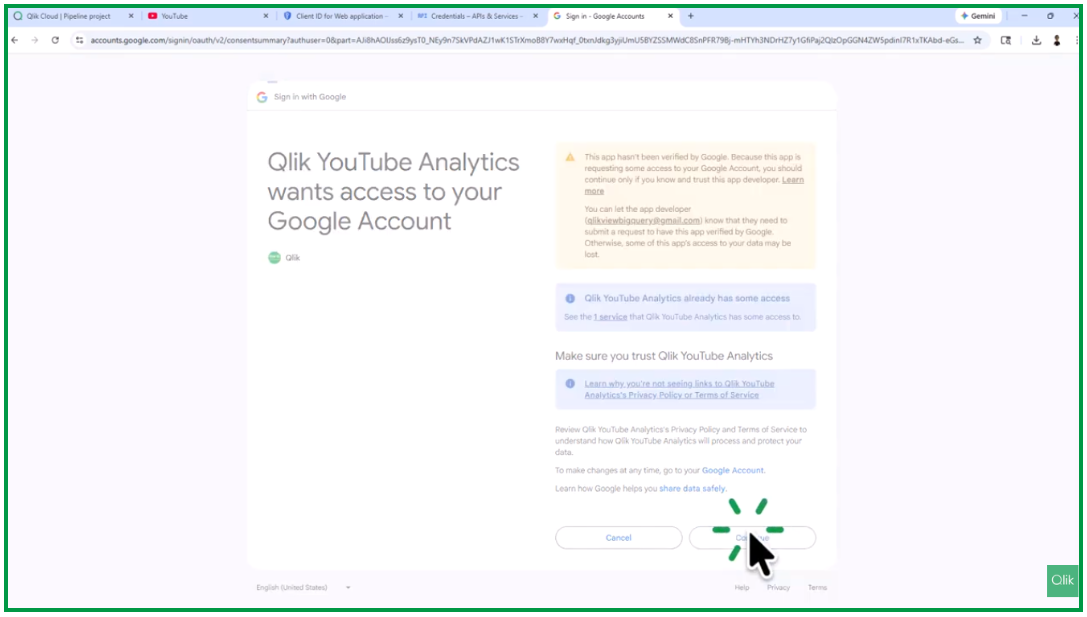
Click Continue.
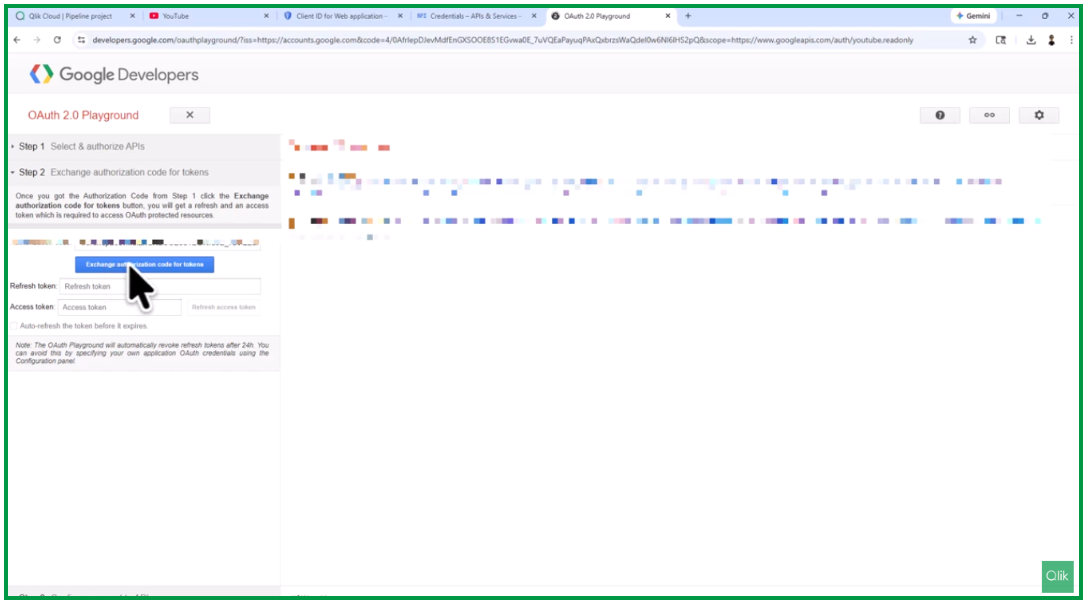
You will then see the option Exchange authorization code for tokens.
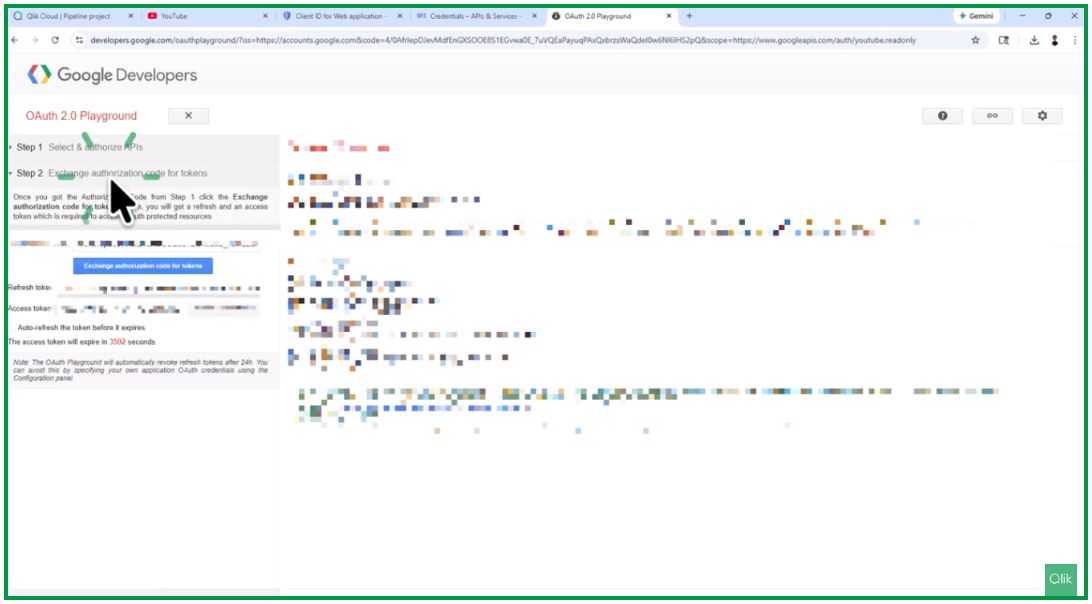
Due to a small interface issue in Google’s console, the section may collapse automatically.
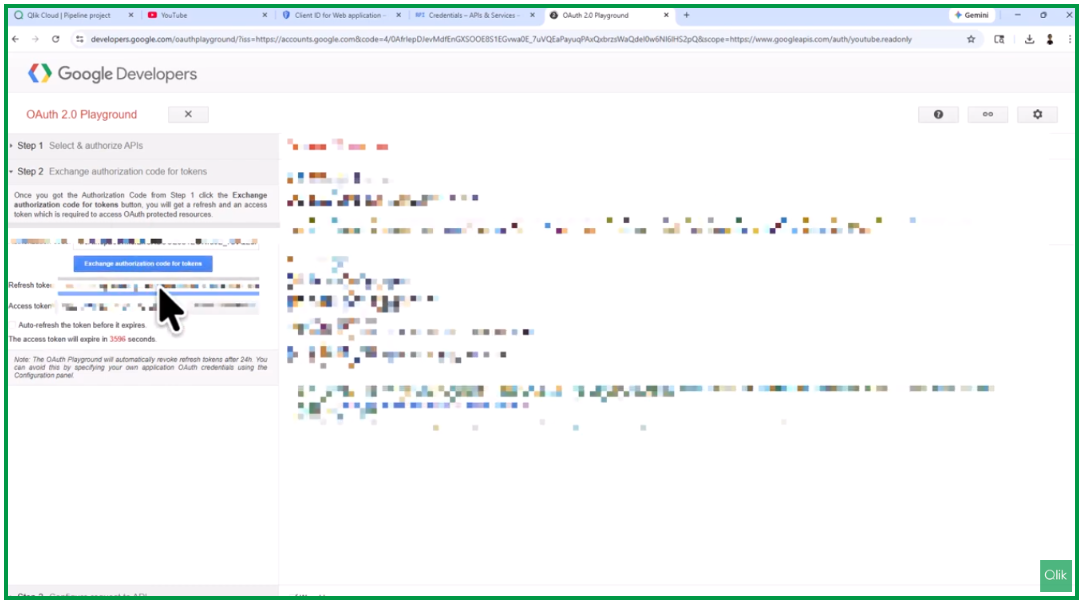
Simply expand it again to retrieve the refresh token.
Copy the refresh token and paste it into the Refresh Token field in the connector configuration. Then enter the Client ID and Client Secret, and keep the connector name as YouTube Analytics.
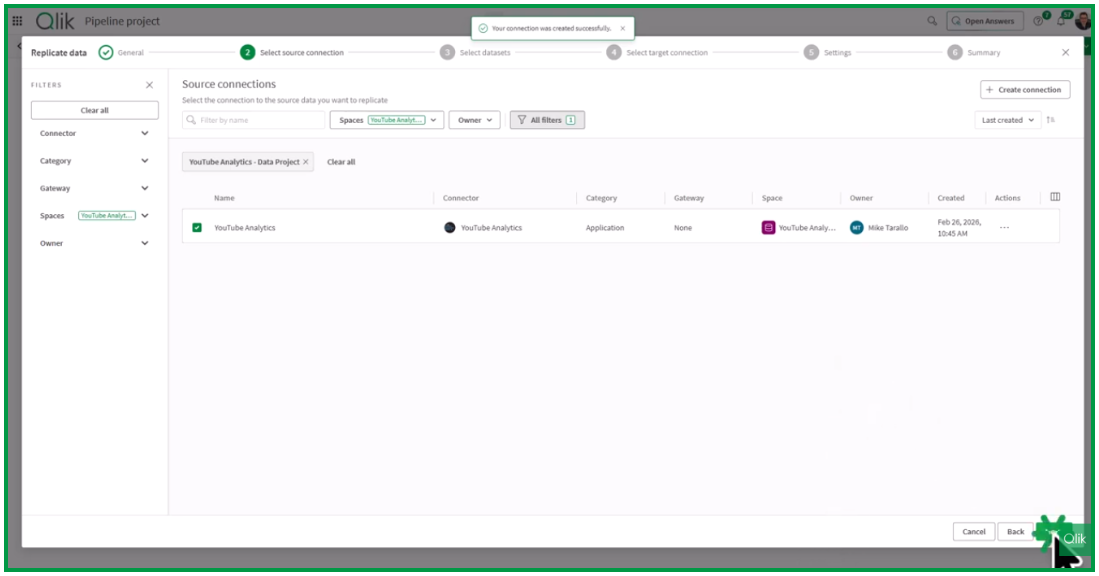
Click Create. The validation process usually takes less than a minute. Once completed, you will be able to view the available data objects provided by the YouTube connector.
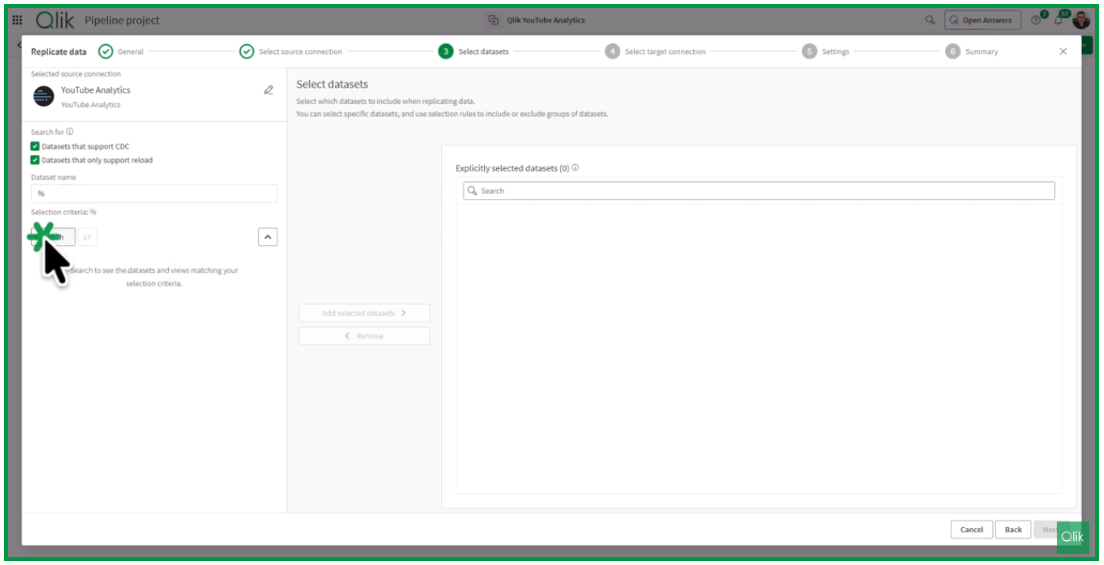
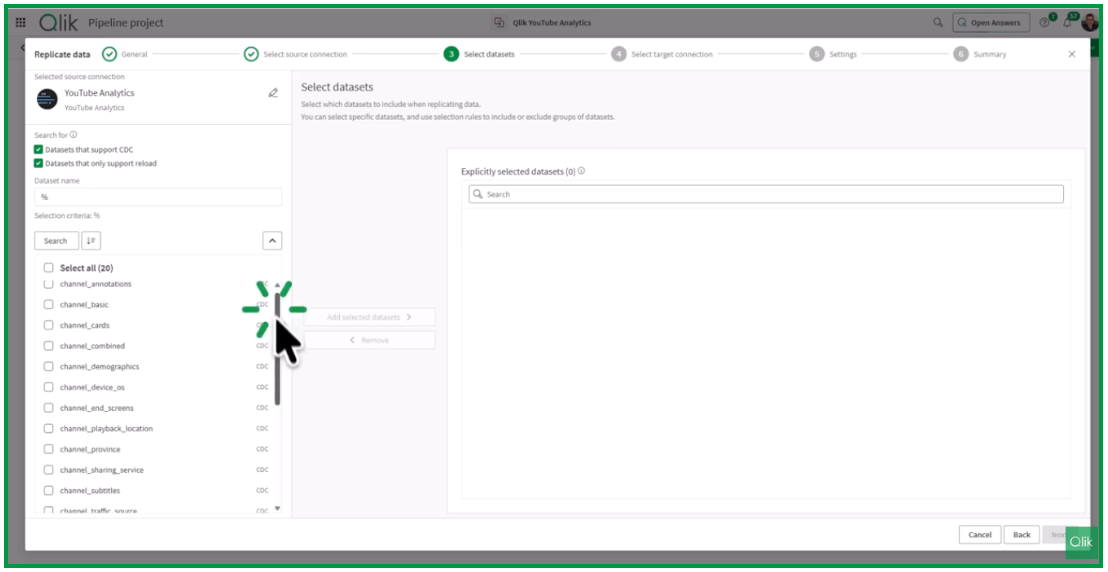
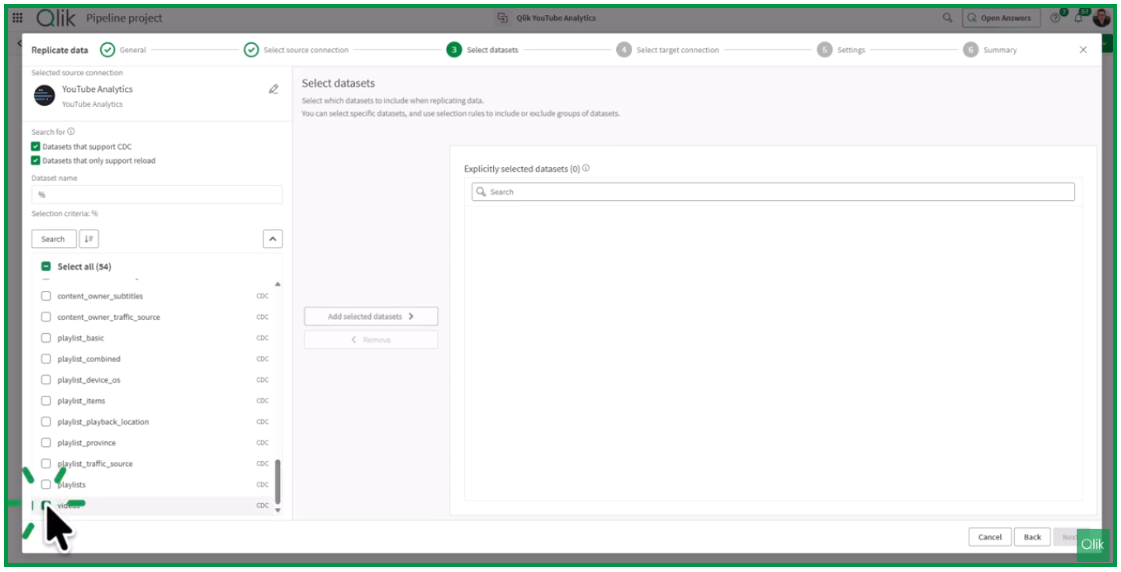
So, now you have a connection. You can click Next and here is your data set name.The system will display all available objects from the YouTube data connector.
To list available data objects, use % as a wildcard and click Search.
At this stage, simply select the data objects you want to replicate. For this example, we will choose the Videos dataset to keep things simple.
Add the selected dataset and click Next.
Configuring the Target
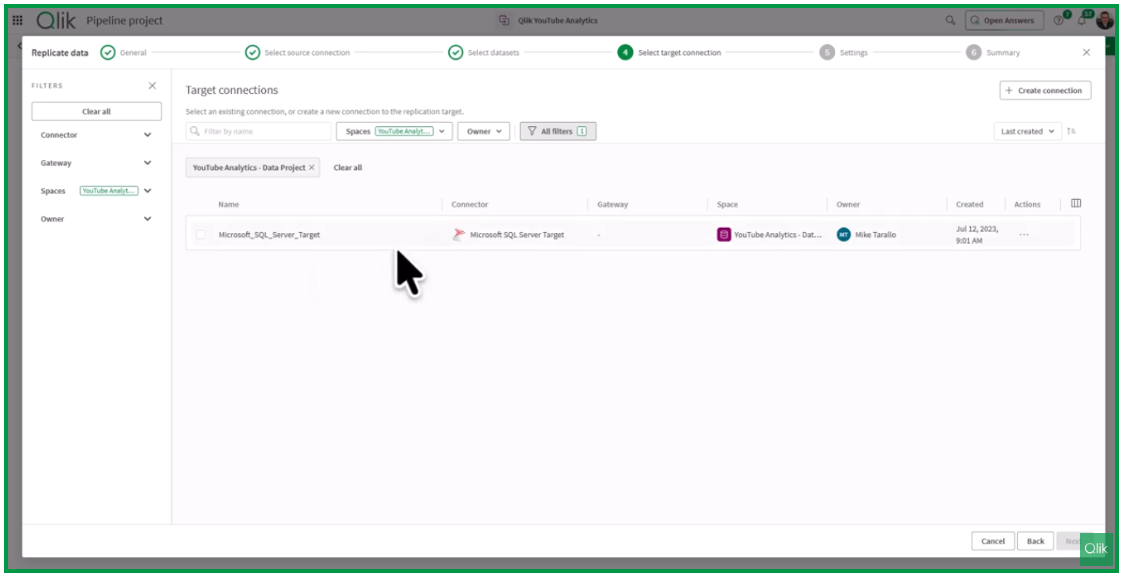
Next, define the target database. The target connection must already be configured. This typically involves specifying your host, database, and authentication settings. In this example, the target is a SQL database hosted in Azure Cloud.
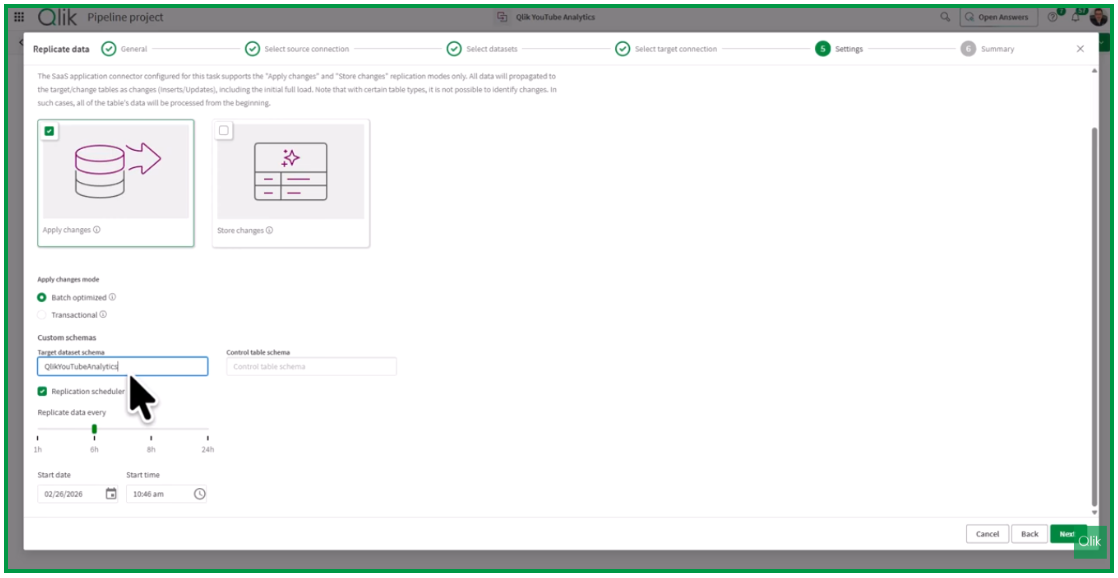
You can define:
Target database
Schema name
Replication schedule
If left blank, default names will be used. In this example, we assign the name Qlik YouTube Analytics and schedule replication every six hours. Click Next.
Preparing and Running the Task
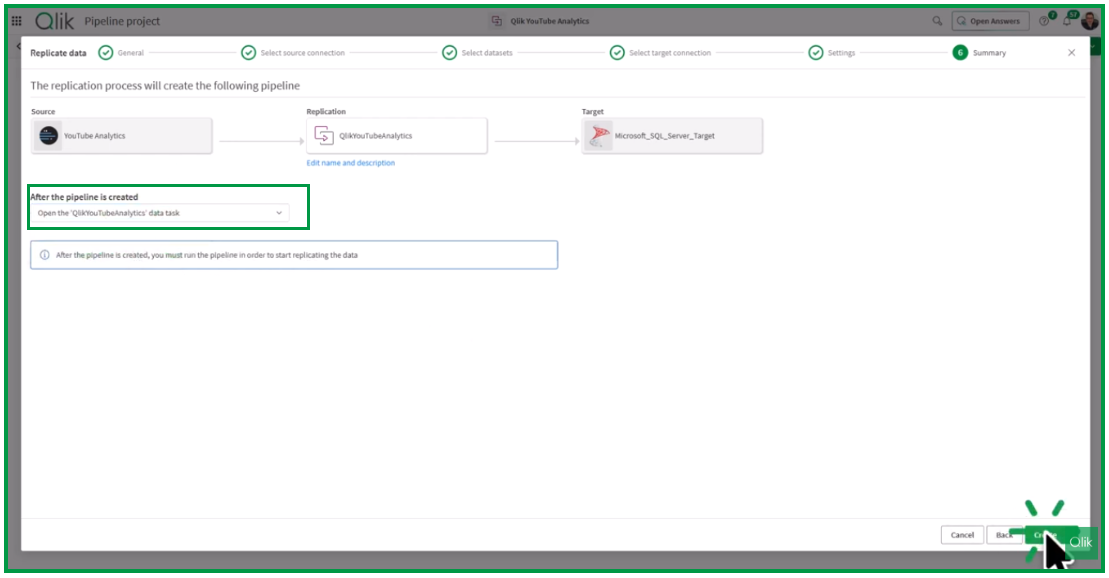
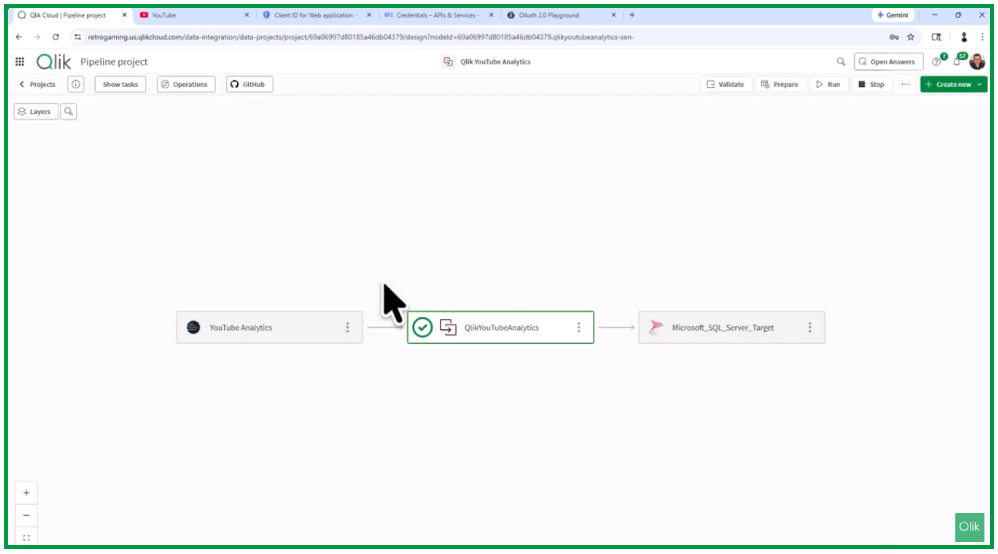
Once the pipeline is created, open the data task and click Create.
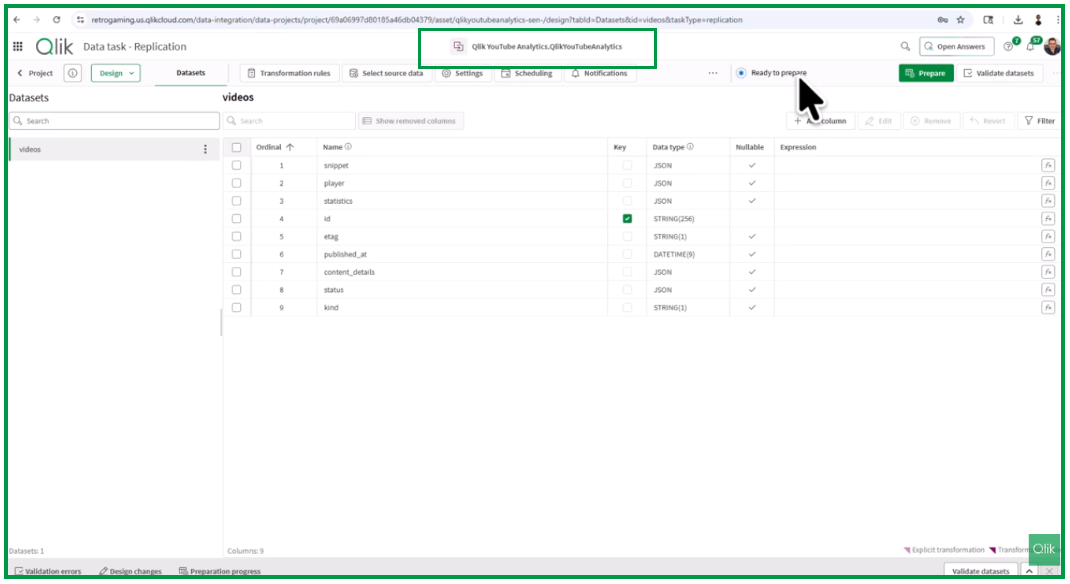
Keep in mind that if you modify API scopes or other authentication settings later, you will need to generate a new refresh token and update the connector accordingly. After updating the connector, changes may take 5–10 minutes to propagate in the cloud environment. If you still encounter errors after updating the scope, it is likely because the update has not yet been applied. When the task opens, you will see the status Ready to prepare.
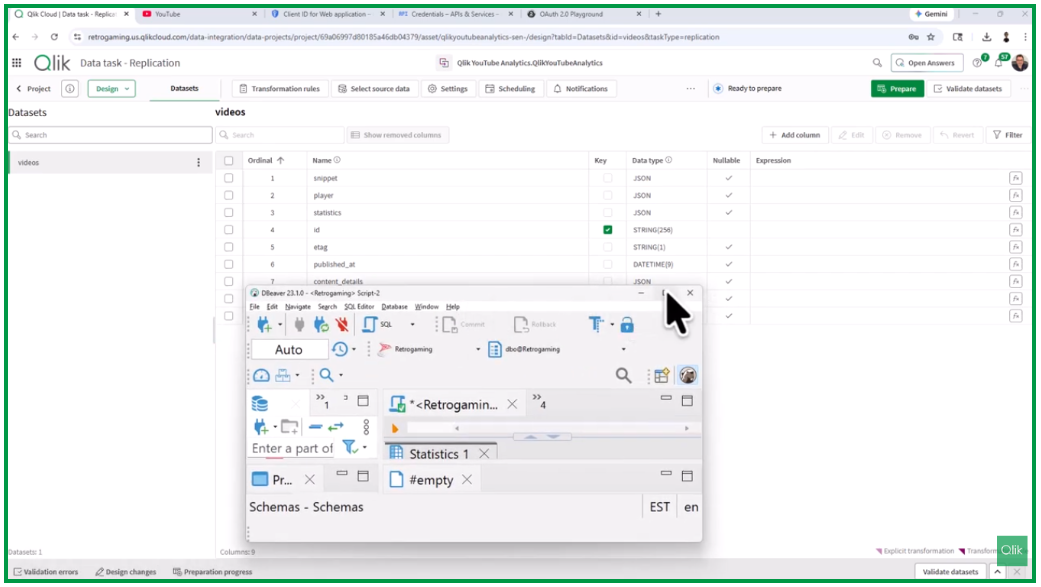
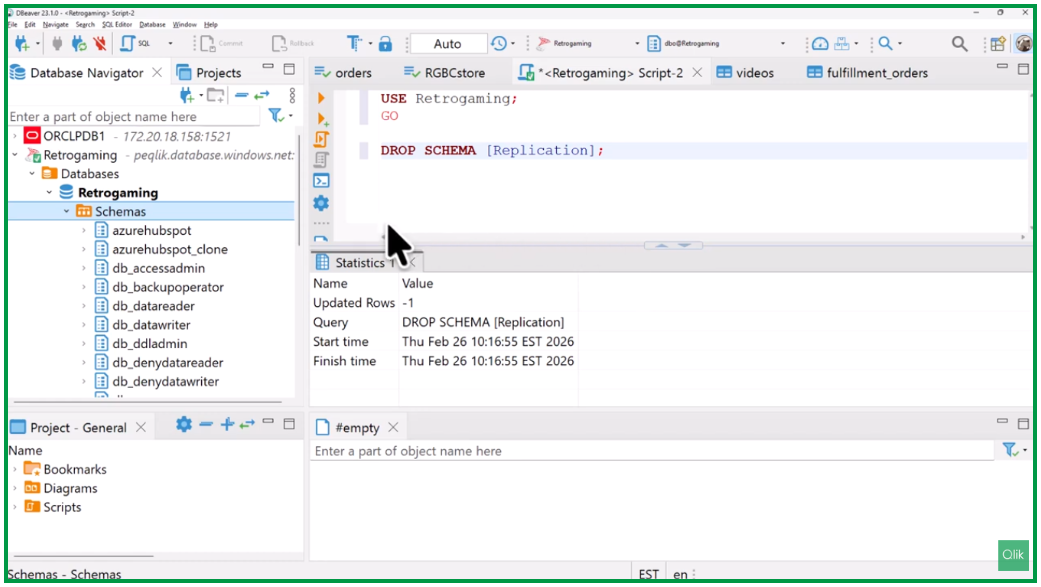
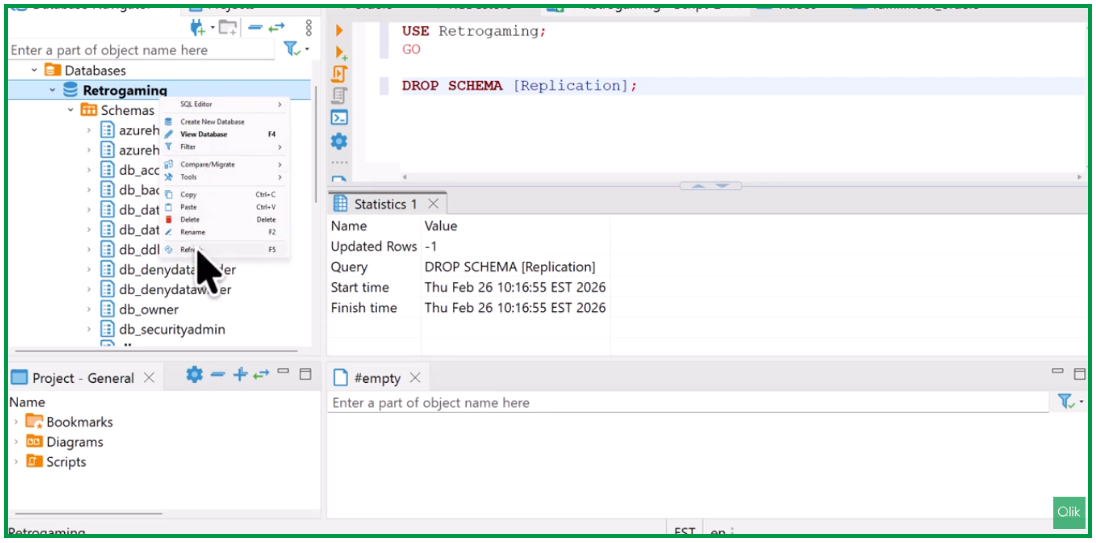
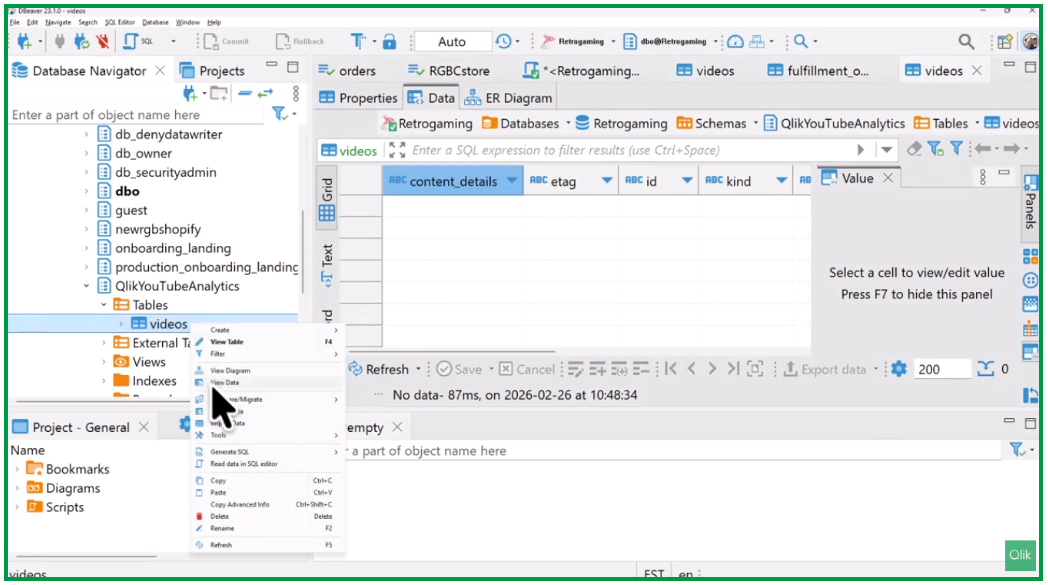
In this example, we use an external SQL client called DBeaver to inspect the database.
This tool allows you to browse and manage all database schemas.
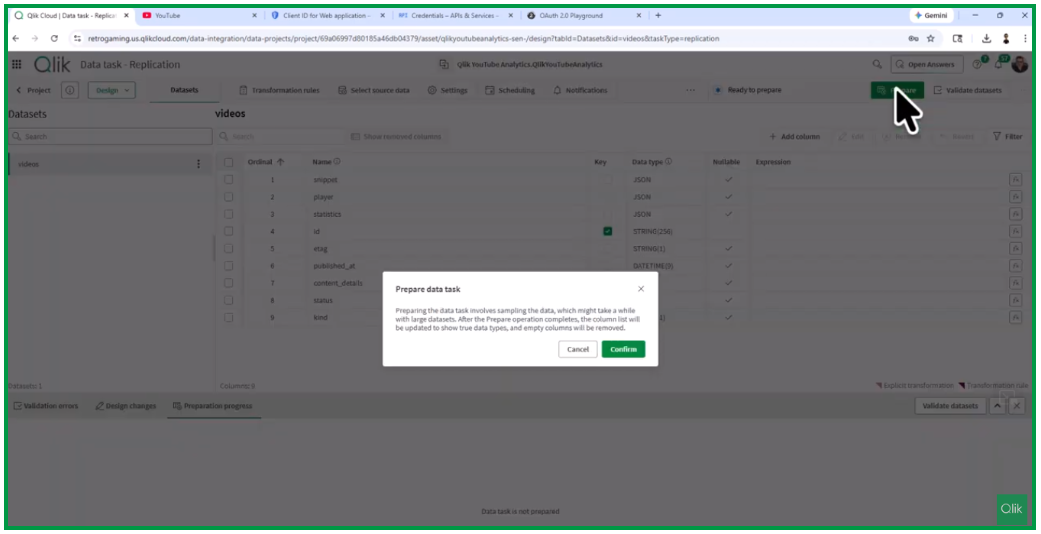
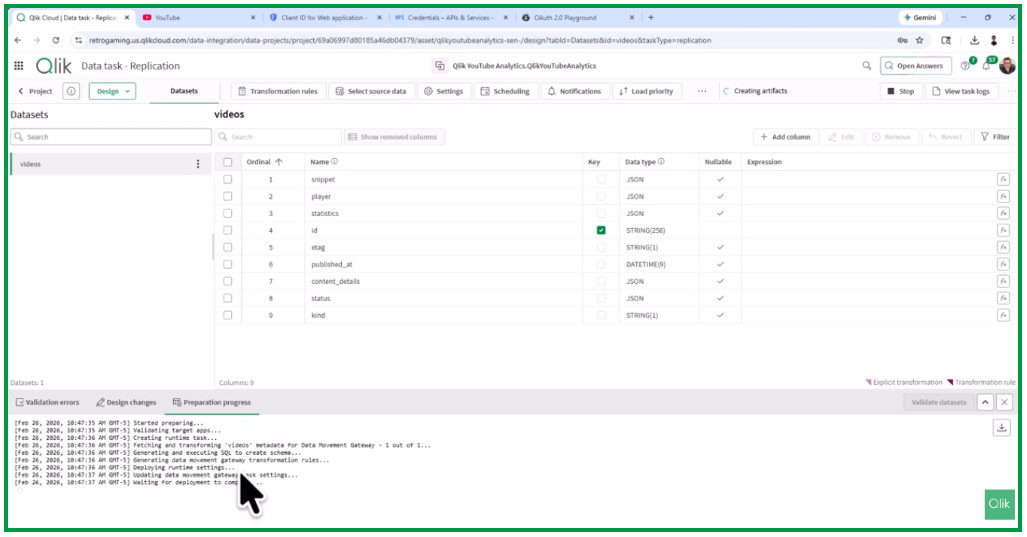
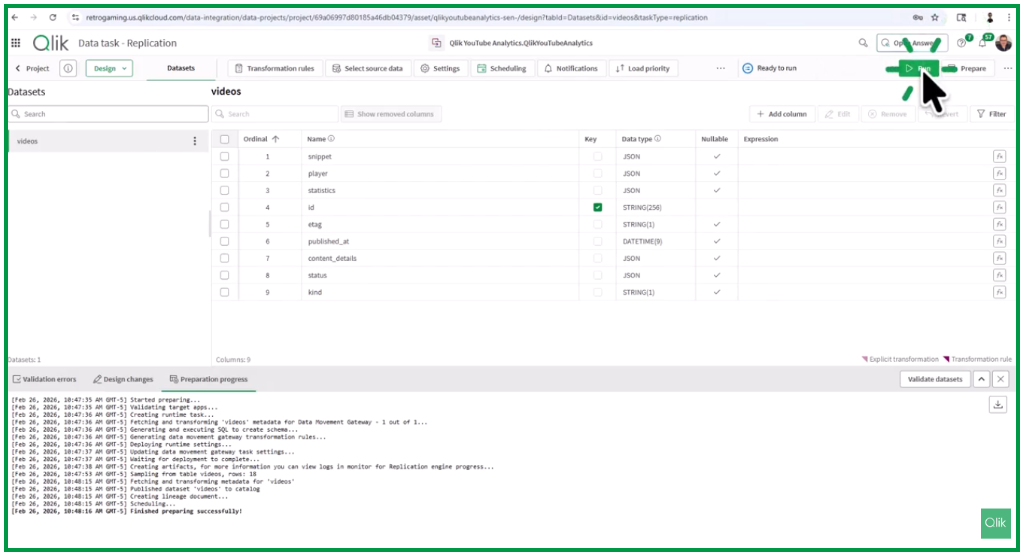
Return to the previous page and click Prepare, then Confirm. The system will display a real-time log, showing the creation of the schema and table structures in the target database.
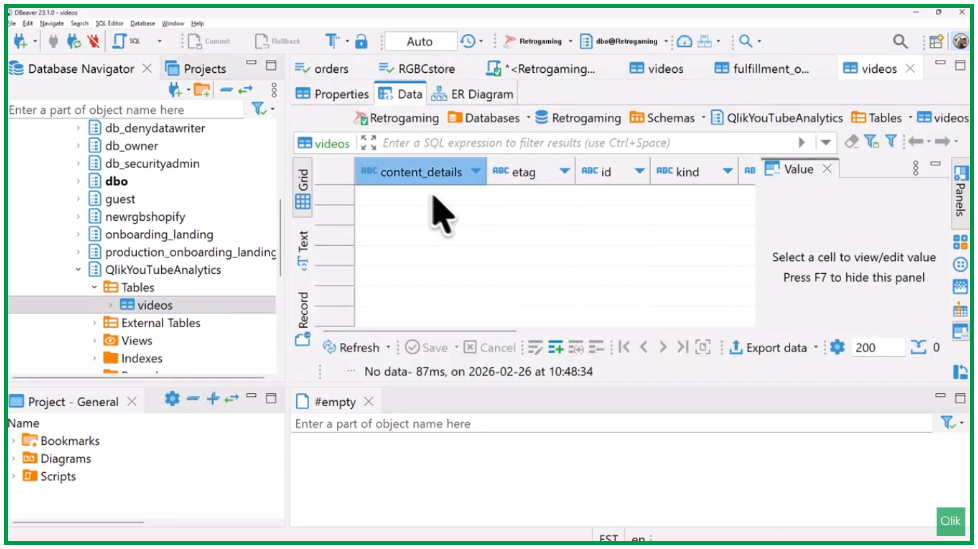
The process typically takes less than a minute. During preparation, the system samples data from the Videos table. Once the preparation finishes successfully, refresh the database view in DBeaver. You will see the new schemaQlik YouTube Analytics and the Videos table.
At this stage, the table structure exists but does not yet contain data.
To load the data, click Run.
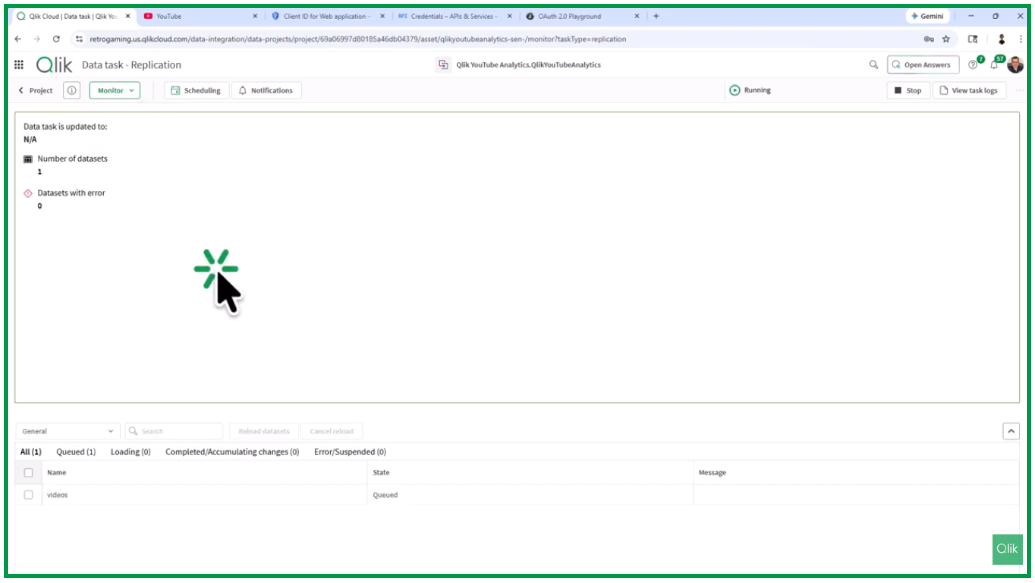
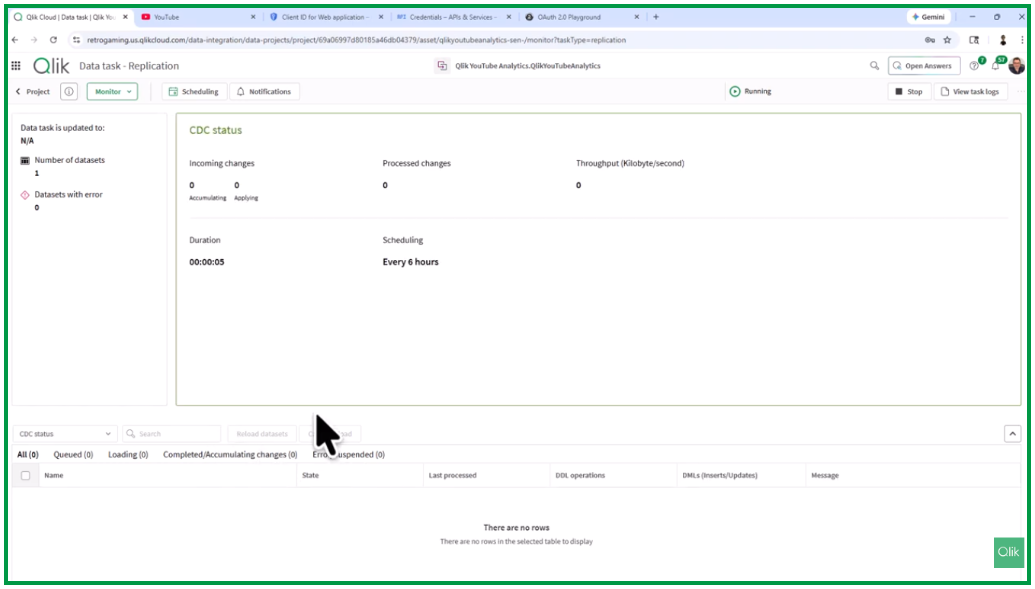
The interface switches from design mode to monitoring mode.
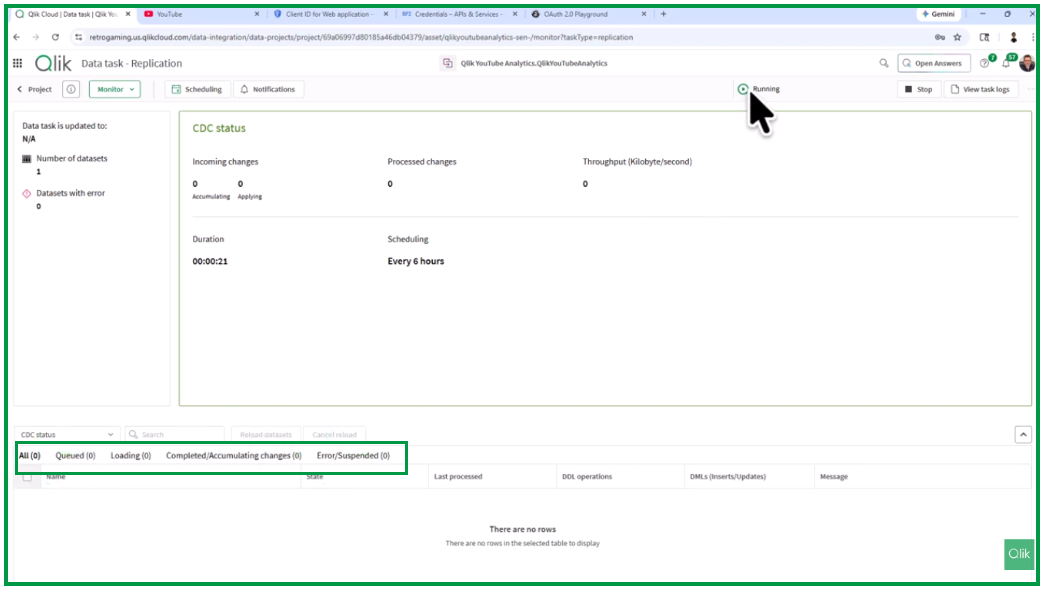
Here you can observe statistics and metrics related to the data load.
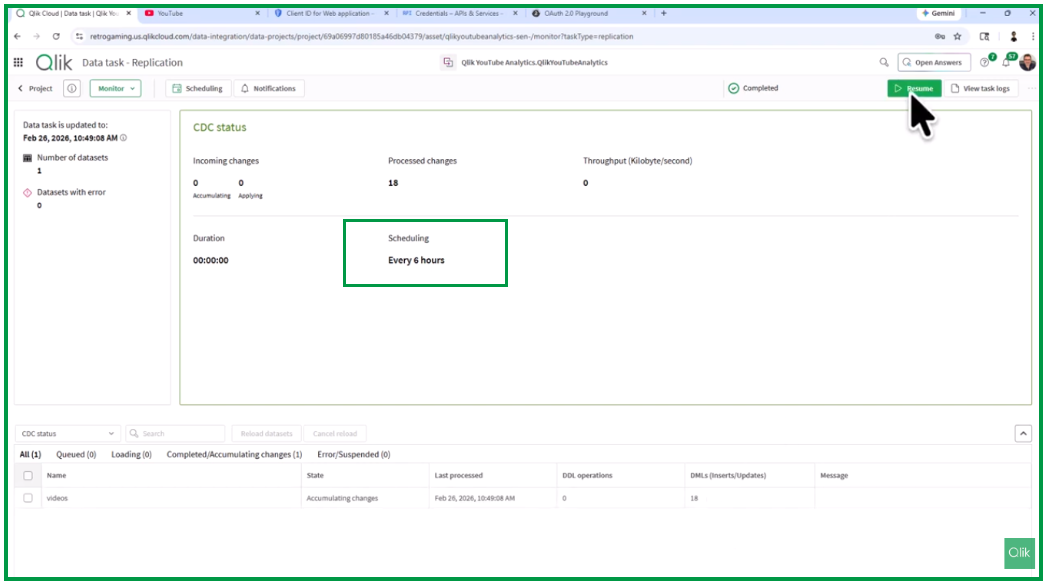
After a few minutes, activity will begin appearing in the monitoring view. You can navigate through the different tabs to monitor the task status.
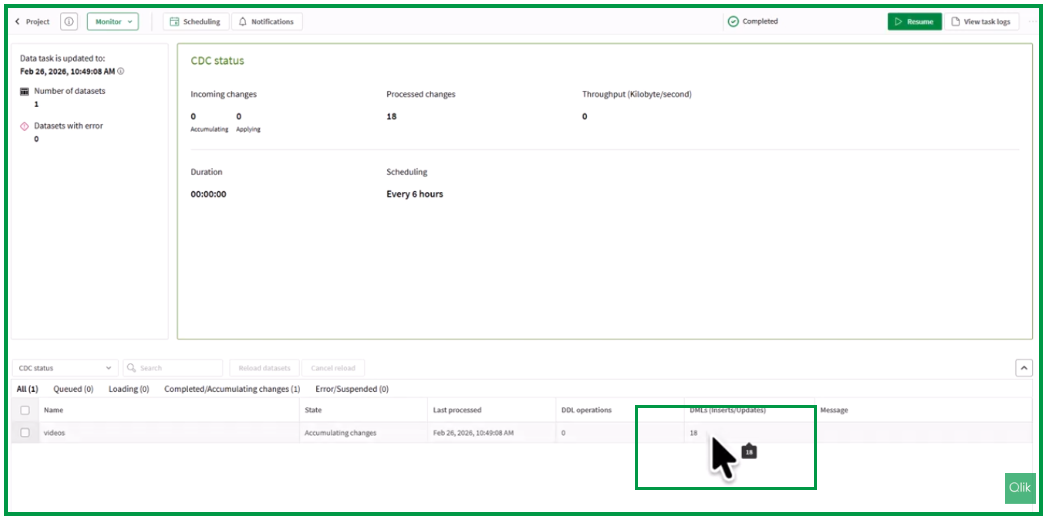
Once the process completes, you will see the number of inserted or updated records.
Since the replication schedule is configured for every six hours, the task will continue running according to this schedule.
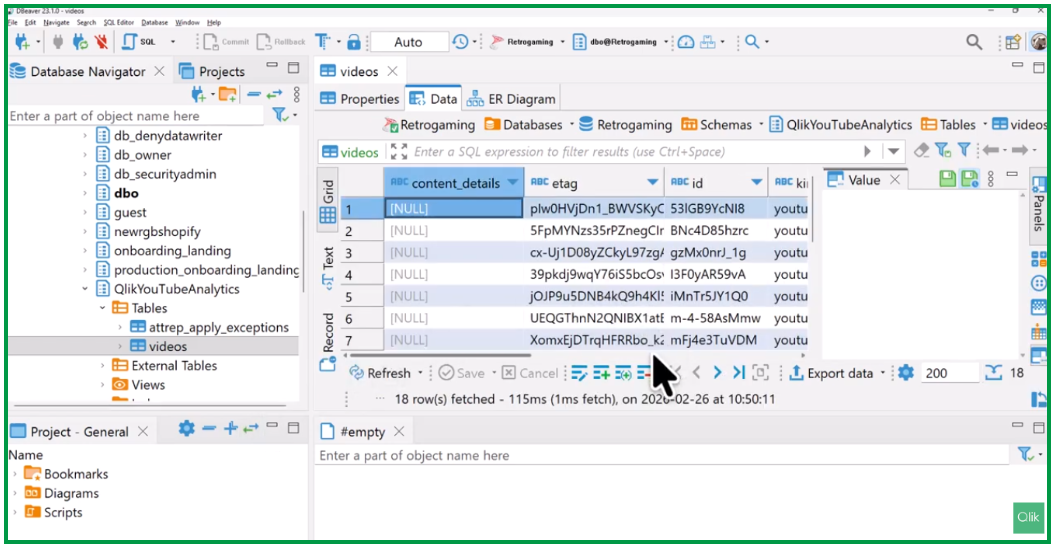
If we return to DBeaver and view the data in the Videos table, we can now see the loaded information, including video IDs, publication dates, and statistics.
Conclusion
This demonstration illustrates how to create a replication task in Qlik Talend Data Integration to retrieve data from YouTube Analytics and load it into a target database. This is the first step in a broader process of consolidating data into a data store or data mart that can support advanced analytics or AI initiatives.
For information about Qlik™, click here: qlik.com. For specific and specialized solutions from QQinfo, click here: QQsolutions. In order to be in touch with the latest news in the field, unique solutions explained, but also with our personal perspectives regarding the world of management, data and analytics, click here: QQblog !
This website uses cookies to improve your experience. We'll assume you're ok with this, but you can opt-out if you wish.AcceptRejectRead More
Privacy & Cookies Policy
Privacy Overview
This website uses cookies to improve your experience while you navigate through the website. Out of these, the cookies that are categorized as necessary are stored on your browser as they are essential for the working of basic functionalities of the website. We also use third-party cookies that help us analyze and understand how you use this website. These cookies will be stored in your browser only with your consent. You also have the option to opt-out of these cookies. But opting out of some of these cookies may affect your browsing experience.
Necessary cookies are absolutely essential for the website to function properly. This category only includes cookies that ensures basic functionalities and security features of the website. These cookies do not store any personal information.
Any cookies that may not be particularly necessary for the website to function and is used specifically to collect user personal data via analytics, ads, other embedded contents are termed as non-necessary cookies. It is mandatory to procure user consent prior to running these cookies on your website.